
- How To Turn Off Comments on Facebook Posts
- Method 1: Limit Commentors on Post
- Method 2: Turn off Comments on Group Posts
- Method 3: Set Universal Settings for Posts on Facebook Page
- Method 4: Use Third-Party Apps or Extensions
Method 1: Limit Commentors on Post
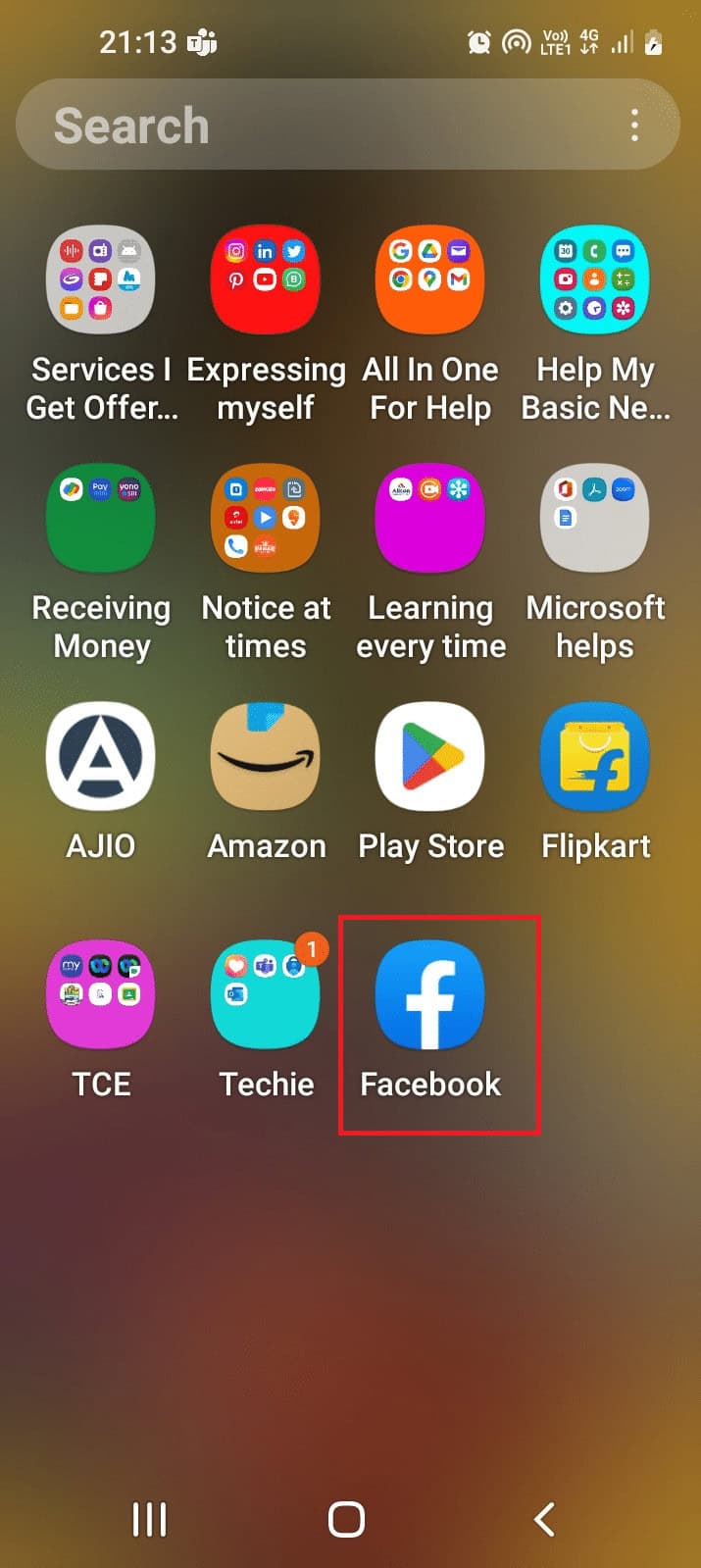
- Launch the Facebook app .
- Tap on the hamburger icon at the top-right corner.


Navigate to the particular post and tap on the three horizontal dots at the top-right corner.
Tap on the Who can comment on your post? option in the list.

The default settings are set to Public . You can change it to any of the options as preferred: Friends and established Followers, Friends, or @Profiles and Pages you mention.
Tap on the Done button to save the changes.

Open the Facebook app.
Tap on the hamburger icon at the top-right corner and then tap on the Groups tab.

- Move into your group and then tap on the three horizontal dots at the top-right corner of the post.

Method 3: Set Universal Settings for Posts on Facebook Page
Method 3A: Select Default Audience
Open the Facebook app.
On the home page, tap on the hamburger icon at the top right corner.
Tap on the gear icon .

- Now tap on Privacy Checkup .

- Hit Who can see what you share .

Tap on Continue .
Tap on Next.

- Under Posts and stories , tap on the drop-down arrow for Default audience .

- Now, select any of the given options as preferred: Public, Friends, Friends except, Specific friends , or Only me .

Method 3B: Moderate Content on Facebook
Open the Facebook app and switch to your page.
Tap on the Hamburger icon and navigate to Settings and privacy .
Tap on Settings .
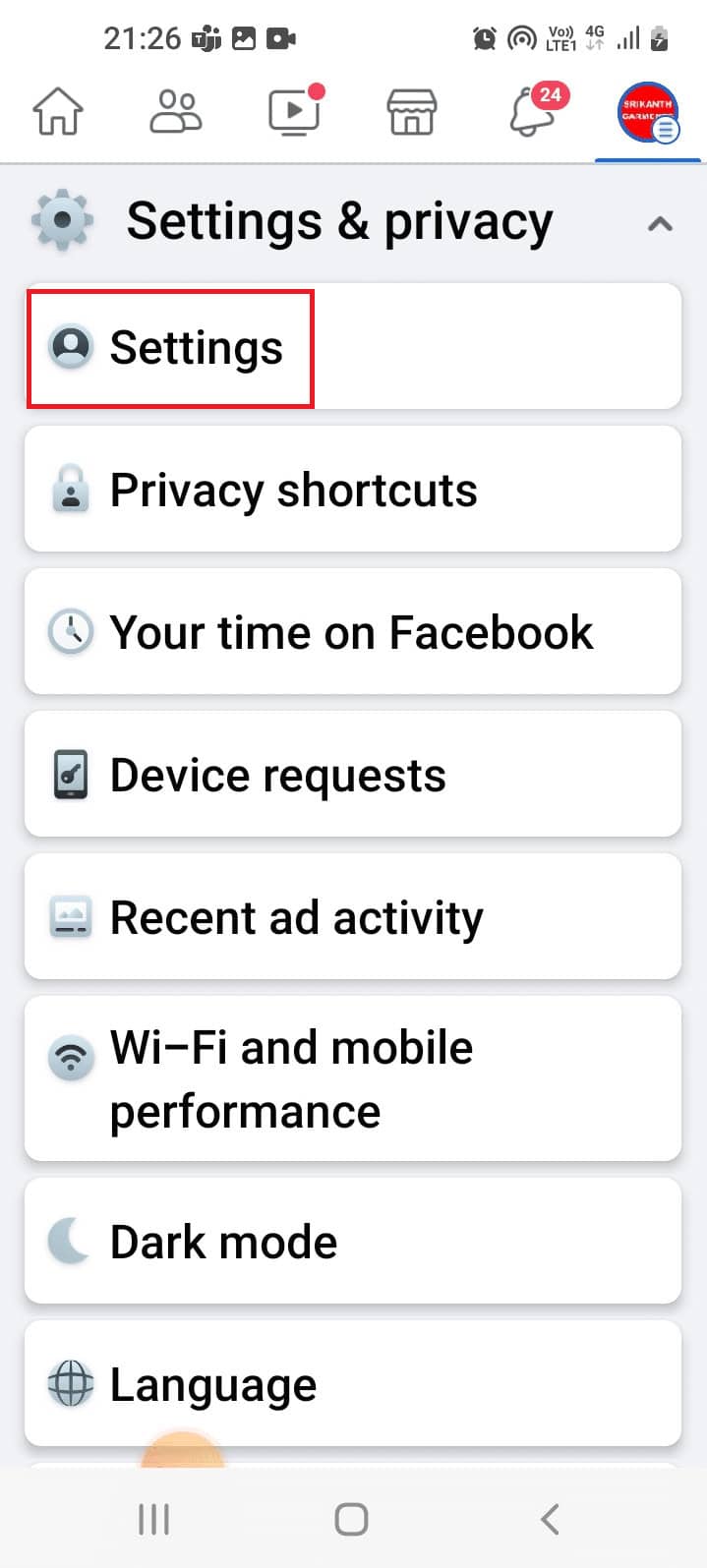
- Now tap on Page Settings as shown in the picture.

- Hit the Public posts option.
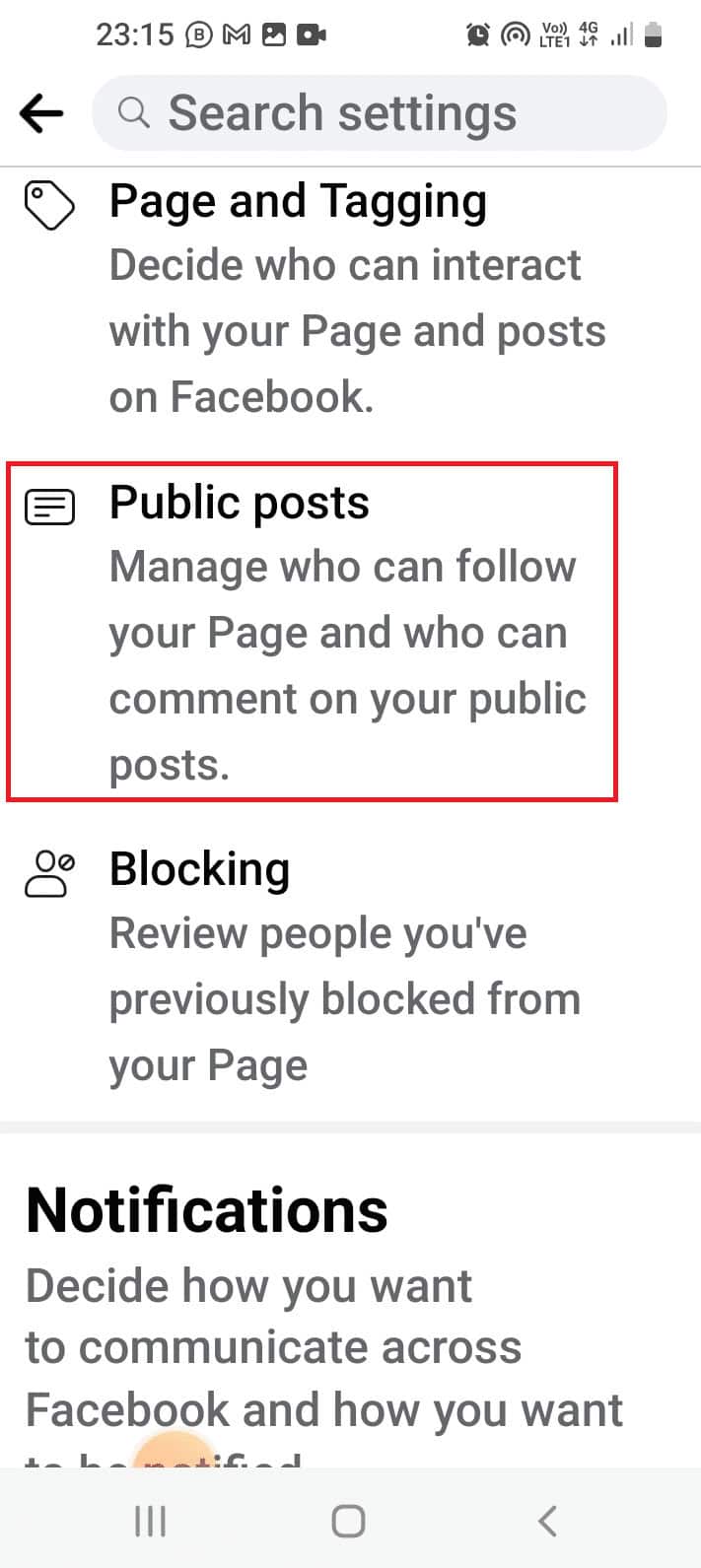
- Scroll down to navigate Content moderation and then tap on the Profanity filter .
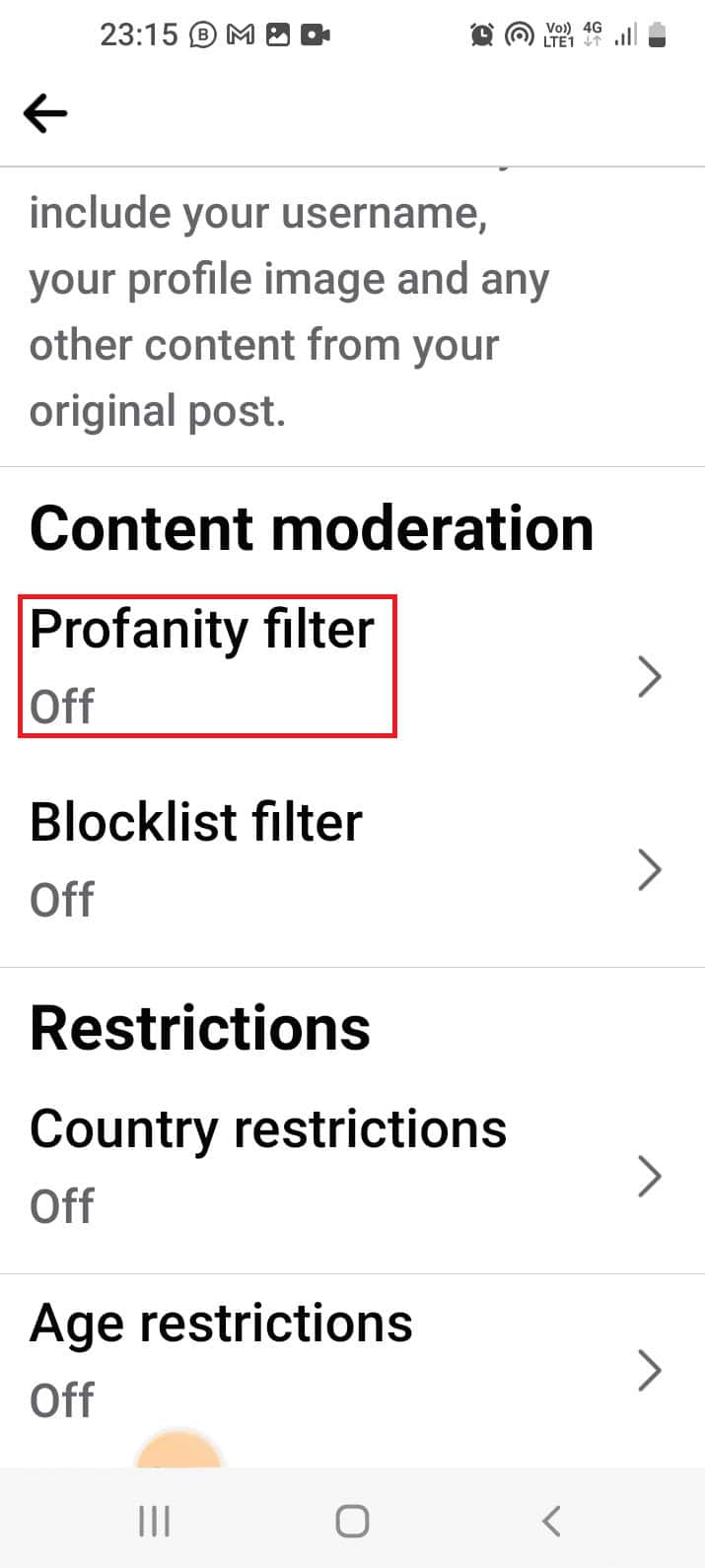
- Toggle on the Enable profanity filter setting on the page.

Note: It is best to include the set of keywords with various characters as given in the description.
In the Facebook app, switch to your page.
Tap the hamburger icon and navigate to Settings and privacy .
Tap on Settings and then on Page settings .
Hit the Public posts option.
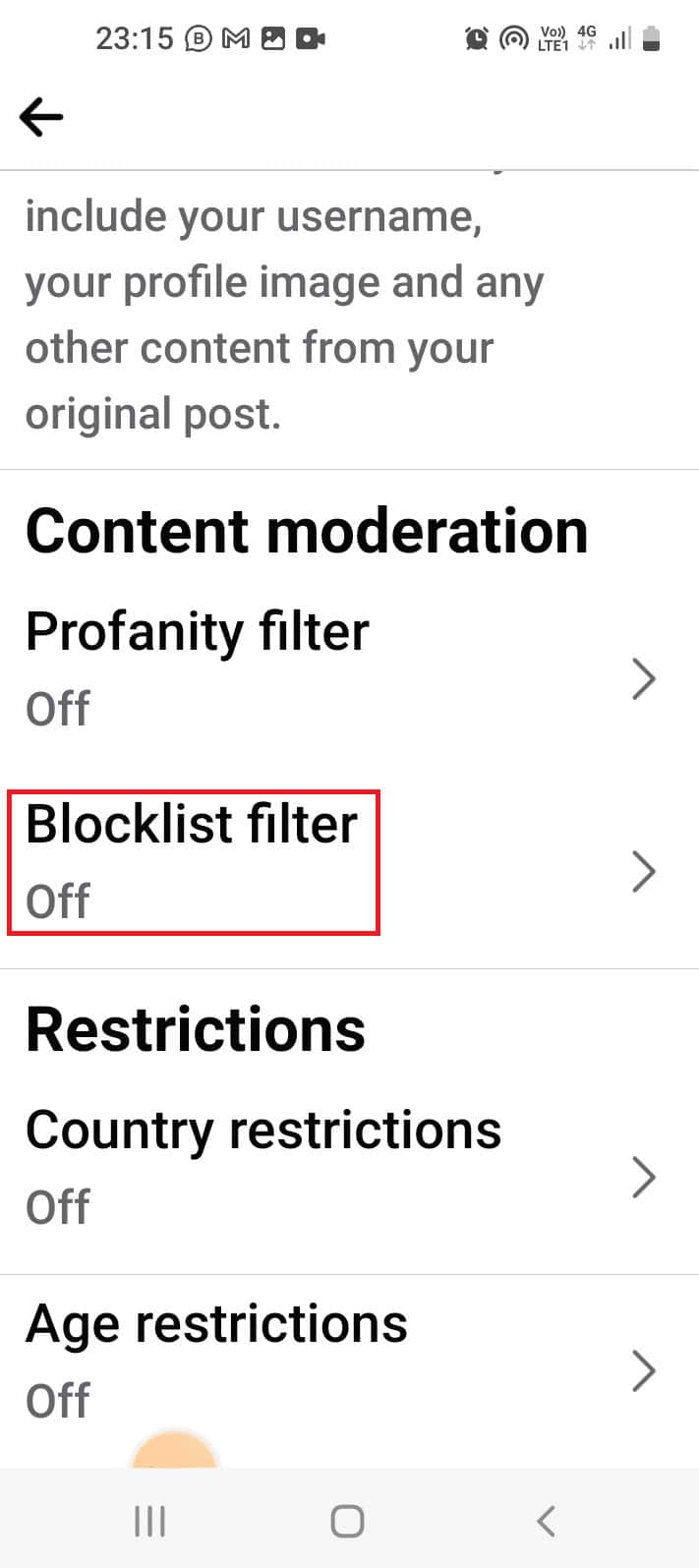
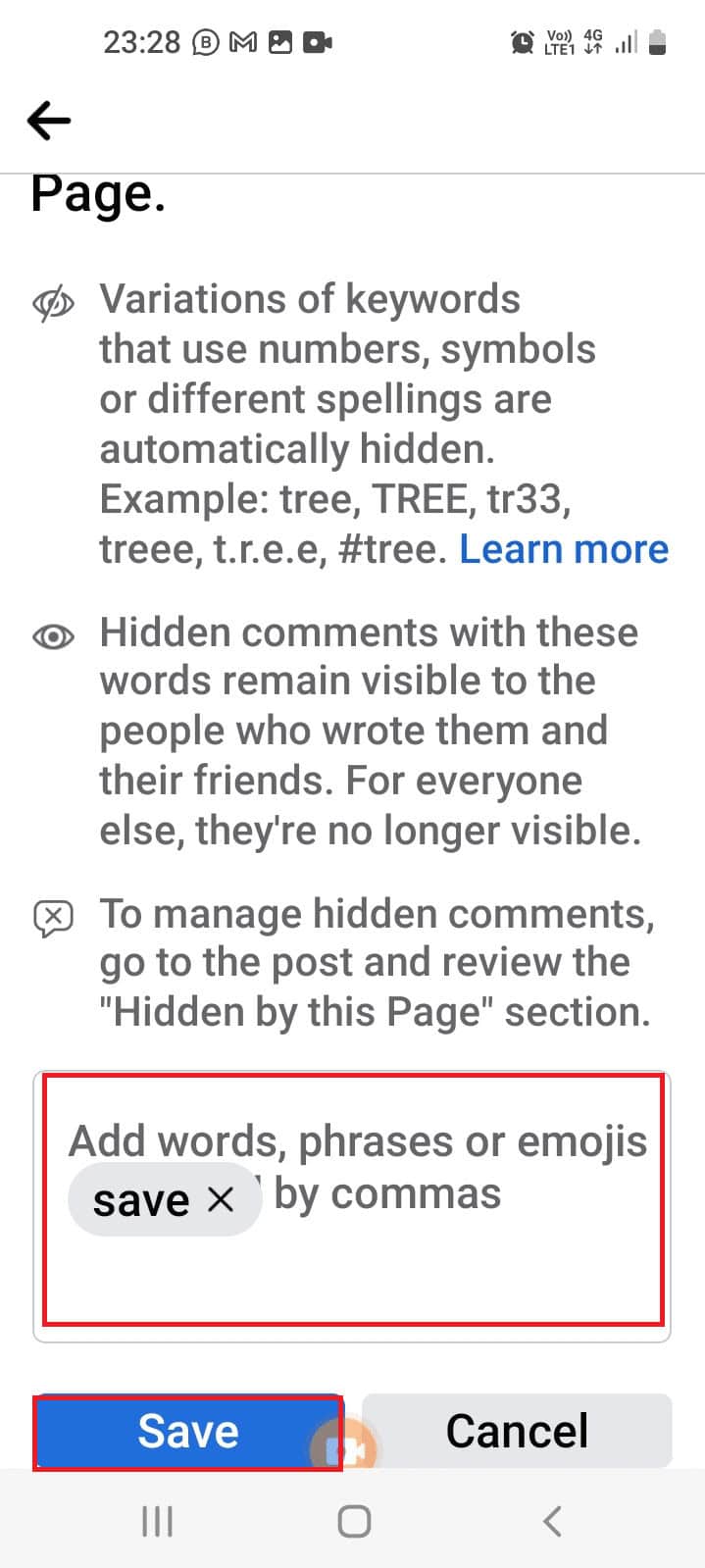
Tap on the Blocklist filter option in the Content moderation section.
Method 3D: Review Tags on Posts
On your page, navigate to Page settings .
Tap on the Page and Tagging option.
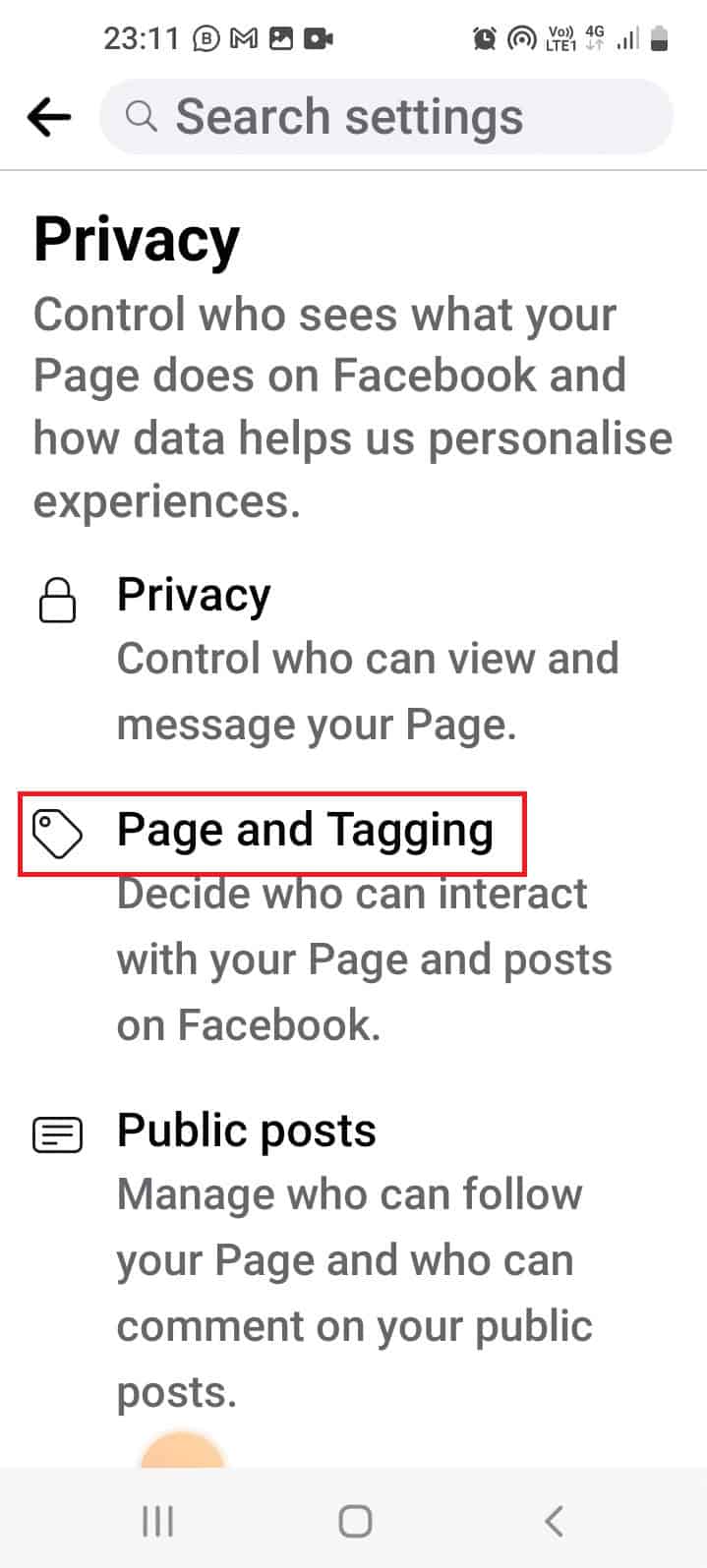
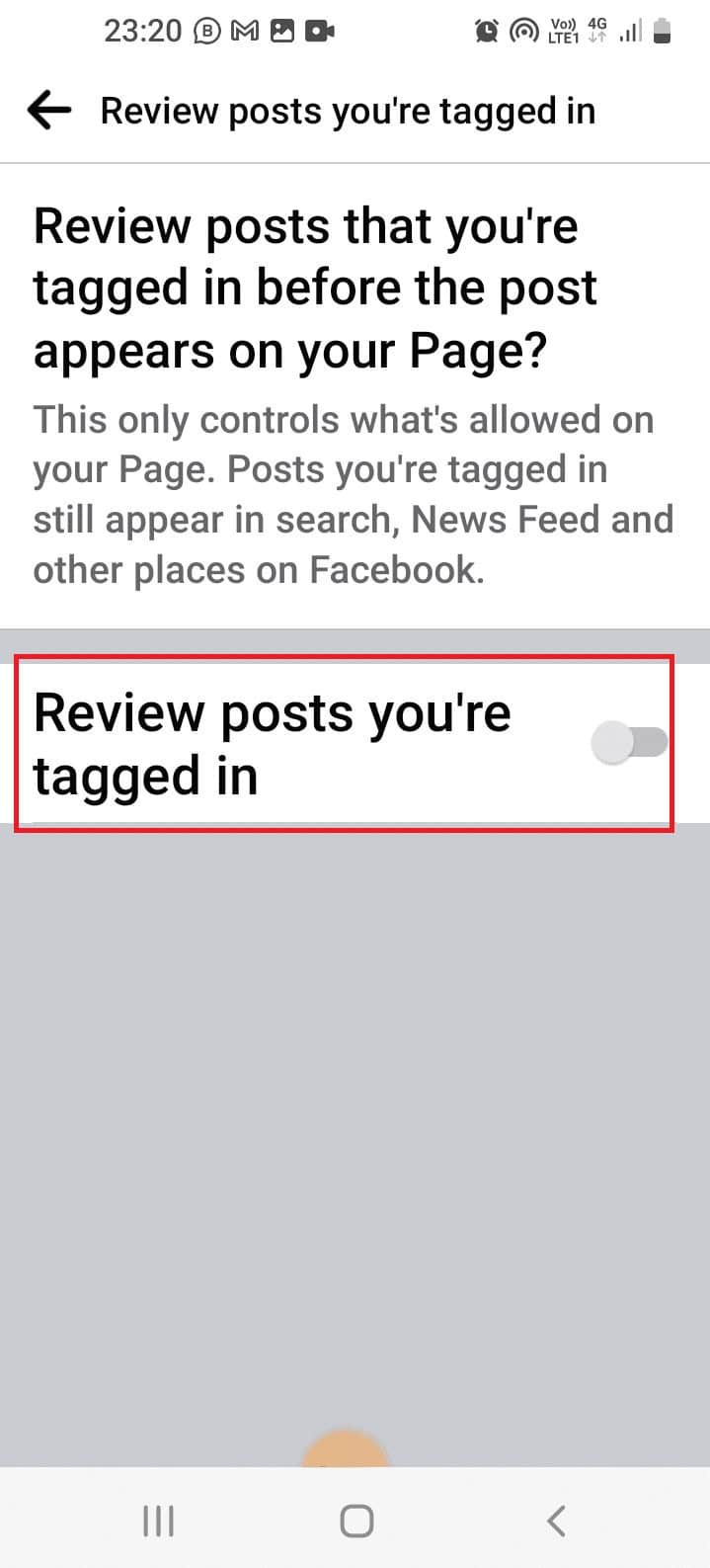
- In the Reviewing section, tap on Review posts that you’re tagged in before the post appears on your Page?

- Toggle on the Review posts you’re tagged in.
Method 4: Use Third-Party Apps or Extensions
Note: We do not endorse any such apps that offer such services; therefore, use these at your discretion.
Method 4A: Using Chrome Extensions
- Shut Up: Comment Blocker


Method 4B: Using Smart Moderation Tool

Recommended: 8 Fixes for Facebook Messenger Notification Won’t Go Away
