All of us can agree that getting automatic text predictions can become pretty frustrating, especially while sending important mail for work. Unfortunately, several platforms including Outlook have this feature enabled by default to help users save their time. Knowing how to turn off the text prediction on Outlook can help you maintain your personal writing style and prevent any unwanted or inaccurate suggestions from appearing in your emails. So, what are you waiting for? Let’s show you how it’s done!
- How to Turn Off Text Prediction on Outlook
- Method 1: Via New Outlook
- Method 2: Via Old Outlook
- Why Can’t I Find the Text Prediction Option on Outlook?
- Are There Keyboard Shortcuts to Use Text Prediction in Outlook?
- Can You Customize Text Prediction in Outlook?
- Can You Turn Off Text Prediction for Specific Emails Only in Outlook?
How to Turn Off Text Prediction on Outlook
Now you can maintain your writing style and ensure every word you type is exactly what you wish to say without getting annoying suggestions. Keep reading below to find out your answer.
Method 1: Via New Outlook
Since the interface of the new Outlook is different, here’s how you disable text predictions from the platform:
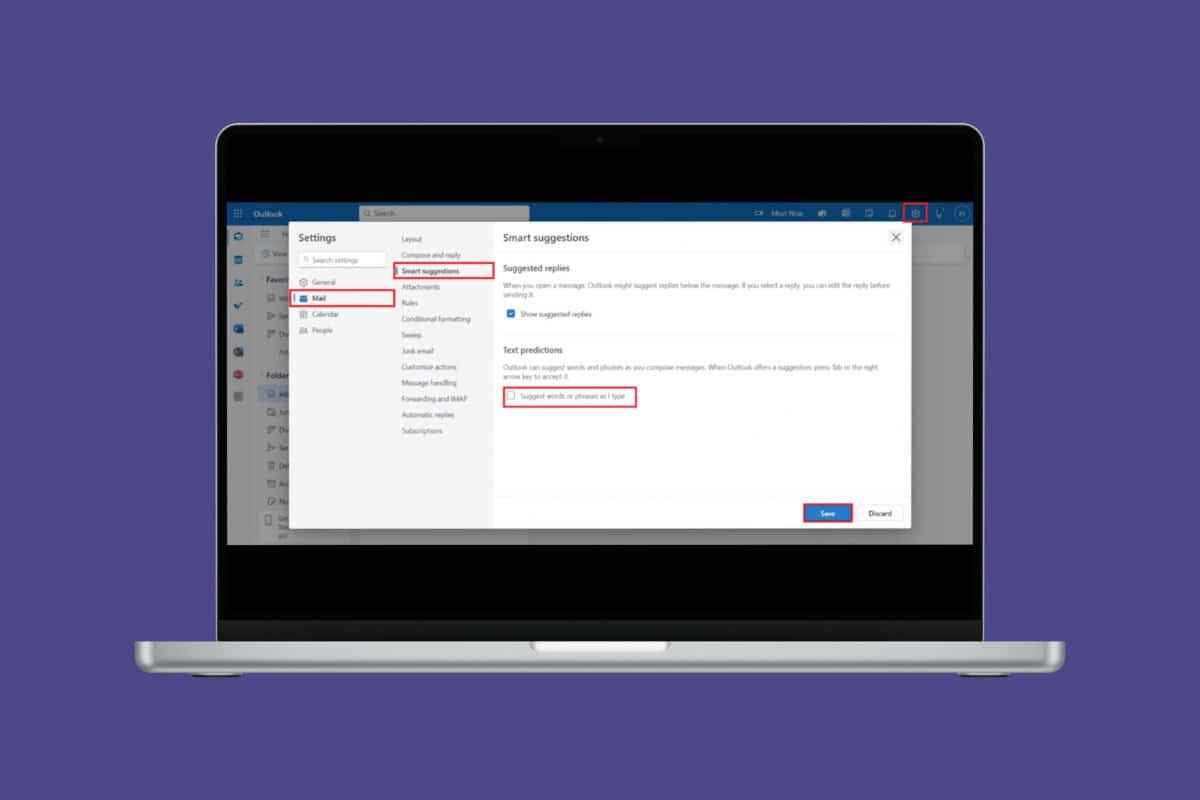
- Log in to your Outlook account from the browser .
- Click on View at the top left ribbon. Please note that you can also click on the settings icon in the top right corner.
- Click on View Settings .
- Select Email .
- Click on Smart Suggestions .
- Untick on Suggest words or phrases as I type under Text predictions .
- Click on Save .
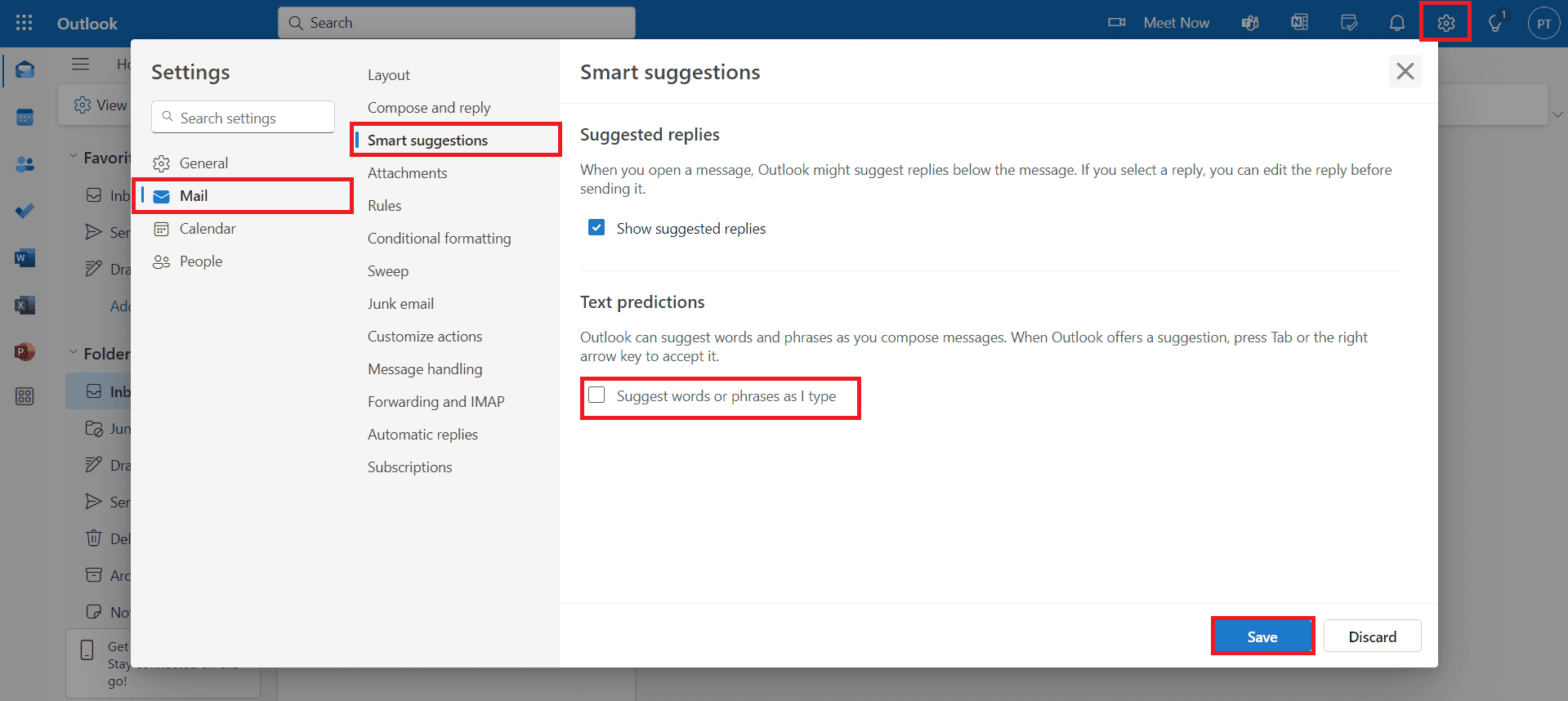
Now you will not get unnecessary suggested replies while writing an email.
Method 2: Via Old Outlook
Follow the steps mentioned below to find the predictive text option from the old Outlook:
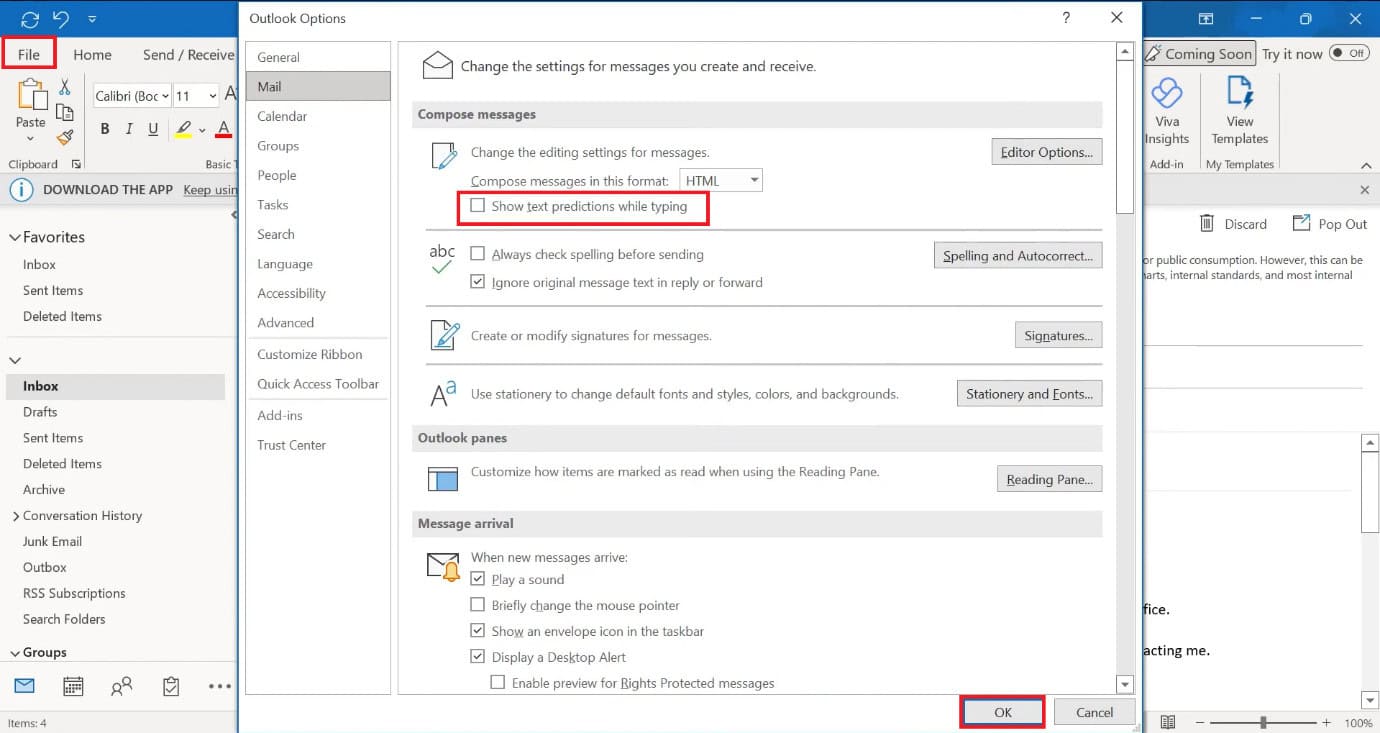
- Open Outlook and click on File from the top left corner.
- Click on Options from the bottom left corner.
- Select Mail .
- Untick on Show text predictions while typing under Compose messages.
- Click on OK .
Why Can’t I Find the Text Prediction Option on Outlook?
If you cannot locate the text prediction feature on Outlook, there can be a couple of reasons, such as:
- You are using Outlook from the mobile app.
- You are on Outlook from the web app version, where the feature is not available.
Are There Keyboard Shortcuts to Use Text Prediction in Outlook?
There are no specific keyboard shortcuts to turn text prediction on or off. You can only change this feature from Outlook settings.
Can You Customize Text Prediction in Outlook?
No , you cannot customize text prediction phrases; you can enable or disable the feature as per your preference.
Can You Turn Off Text Prediction for Specific Emails Only in Outlook?
No , disabling this option will be applied to all future emails in Outlook.
