Adding emphasis to your text can make your messages and notes more impactful, and one way to achieve this is by underlining text on your iPhone. Whether you’re using it for a professional email, a creative message, or just want to draw attention to specific words or phrases, underlining text can be a useful tool. In this guide, we’ll show you how to underline text on your iPhone across various apps and contexts, making it easy for you to create visually engaging content and convey your message effectively. Let’s get started with enhancing your text on iPhone!
- How to Underline Text on iPhone
- Can You Bold a Text Message on iPhone?
- How Do I Enable Bold Text on My iPhone?
- Can You Underline a Word in a Text on iPhone?
- How Do You Highlight and Underline Text on iPhone?
- Why is Text Underlined on My iPhone?
- How Do You Underline on WhatsApp iPhone?
- How Do You Type in Bold on WhatsApp iPhone?
How to Underline Text on iPhone
Keep reading further to find the steps explaining how to underline text on iPhone in detail.
Can You Bold a Text Message on iPhone?
Yes , you can bold a text message on your iPhone whenever you want. You can select the text and bold any text message on iPhone.
Quick Answer You can change message text on iPhone into bold or underlined format. Follow these steps to underline the text on iPhone. 1. Open the Notes app and select the desired note. 2. Write the text and double-tap on the text, and tap on the Select . 3. Tap on the right arrow icon and select Format and tap on Underline .
How Do I Enable Bold Text on My iPhone?
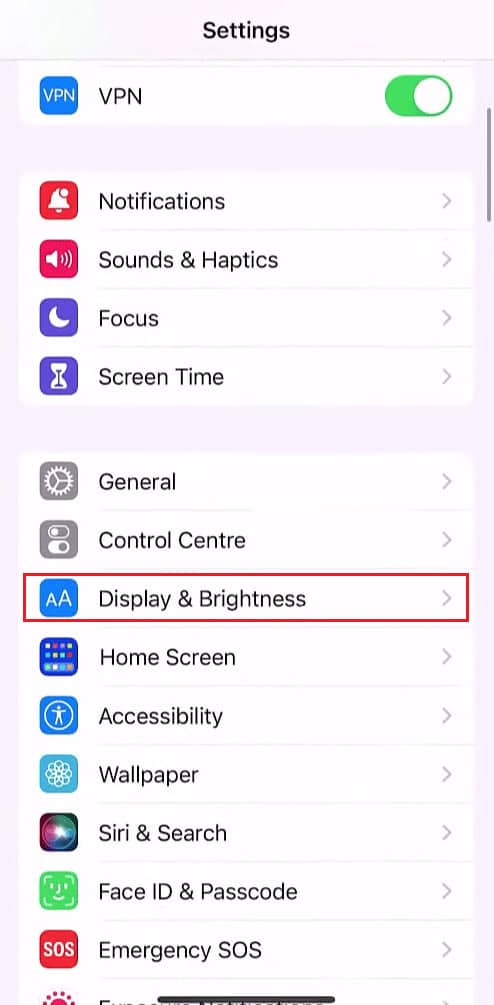
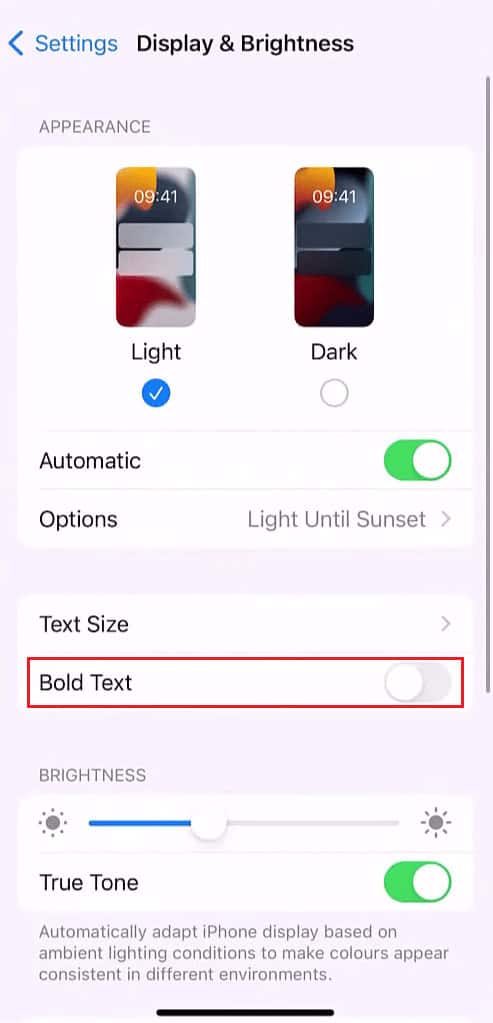
If you want to bold the system text on your iPhone, like app names, settings menu options, etc., follow the steps mentioned below:
- Open the Settings app on your iPhone.

- Then, swipe down and tap on Display & Brightness .
- Turn on the toggle for the Bold Text option.
Also Read : How to Find the Next Instance of Text Formatted in Bold
Can You Underline a Word in a Text on iPhone?
How Do You Highlight and Underline Text on iPhone?
Following are the steps to highlight and underline text on the iPhone:
Open the Notes app on your iPhone.
Select the desired note or create a new note .
Write the desired text in the opened note.
Double-tap on the word or phrase which you want to bold or underline.
Tap on the Select option from the popup menu and select the desired text .

- Then, tap on the right arrow icon .

- Tap on Format .
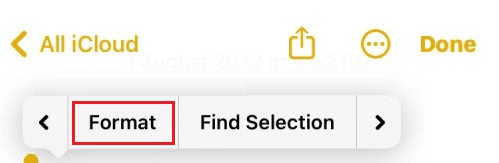
- Tap on the Bold or Underline option.

Also Read : How to Annotate a Text
Why is Text Underlined on My iPhone?
If you formatted the text for underlining unknowingly , you will see the underline below that text. You can disable it by following the same steps mentioned above.
How Do You Underline on WhatsApp iPhone?
The native menu bar with the Format option is not supported on the WhatsApp app on iPhone. So, Copy the text you underlined by following the steps mentioned above and Paste it into the WhatsApp chat.

How Do You Type in Bold on WhatsApp iPhone?
You can place the asterisk (*) symbol at the start and end of the desired word or phrase to bold the text in the WhatsApp iOS app. The asterisk symbol will vanish once you send the text, leaving only the bold text in the sentence.
For example, How to type in * Bold * on WhatsApp?
Recommended :
- 12 Ways to Fix Microsoft Not Sending Message Verification Error
- How to Enable or Disable Auto Capitalization in Word
- How to Highlight Text in Google Slides
- Top 20 Best Mac Clipboard Manager Apps
Microsoft Word is the most used word processor designed by Microsoft. Among the variety of features offered by MS Word, Find and Replace is a prominent feature where users can Find and Replace font formatting in Microsoft Word. It can be done by searching for specific formatting, such as bold/ italic/ underline; you can even change it to other formats. You can search and change character and paragraph formatting with Find and Replace. Word lets you find the next instance of text formatted in bold, etc. Read the article below to know how to do these easily when you have a lot of word pages to change the formatting.

- How to Find the Next Instance of Text Formatted in Bold
- How to Search for Italics in Word
- What is Character Formatting?
- How to Find and Replace Character Formatting
- How to Remove Character Formatting in Word
- How to Clear Find and Replace Formatting from Past Searches
- How to Apply Find and Replace Formatting in Paragraph and Text?
- Scenarios to Use Find & Replace
How to Find the Next Instance of Text Formatted in Bold
MS Word’s Bold feature lets you bold the text to highlight it and make it stand out as important in the text written. Sometimes while reviewing text files, you want to go through all the headings or text put in bold to get the idea of what is written. You might think you would have to scroll down to the word document, but you could find the next instance of text formatted in bold by following the steps given below:
Select the Home Tab in the Ribbon.
Navigate to Editing section. Click on the drop-down arrow on editing to open further options.
Click on the drop-down arrow beside Find .
Click on Advanced Find .

- Find and Replace window pops up. Click on More.

- In the Find section, select the Format button, then Choose Font.

- In the Font style section, select Bold and click OK.

- Select the Find Next button to search the document for bold text.
The bold text will be highlighted in the document. Hence, this is how you can find the next instance of text formatted in bold.
Now you can easily navigate throught a long Word file and find all the things in Bold for easy access. If you want to search and replace instance of bold on the word document, select the Replace tab.
How to Search for Italics in Word
While reading through a long Word document, all you might need is a word or phrase. Most of the phrases are put in Italics to make them catchy and attractive for the reader to specifically focus on it. With the steps given below you will able to search for italics in Word:
Open the Word document that has the italicized words you want to find
Click the Home tab in the Ribbon
Navigate to Editing section.Click on the drop-down arrow on editing to open further options.
Click on the drop-down arrow beside Find.
Click on Advanced Find.

- Find and Replace window pops up. Click on More

- Click on the Format drop-down arrow and choose Font.

- In the Font style section, select Italics and click OK.

- Select the Find Next button to begin searching the document for Italicized text.
The Italicized text will be highlighted in the document
What is Character Formatting?
Character formatting is basically how text is written it includes letters, numbers, punctuation, and symbols, it appears on the screen and in print. Character formatting lets you choose:
- Fonts
- Font sizes
- Outline
- Underlined
- Bold
- Italic
How to Find and Replace Character Formatting
If you want to search for a specific formatting and change it to another, for example you want to change all your Bold text to Italics. Follow the steps given below to find and replace character formatting:
Press Ctrl + H keys together to display the Find and Replace dialog box.
Click on More.
Click on the Format drop-down arrow.
Select a Font .
Select the Font style you want to find.
Next, click on OK

Click on Replace with box.
Click on Format and then select Font
Select the Font that will be used for replacement
Then, click on OK .
Click on Find Next and then click Replace for each occurrence. You can also select Click Replace All .
Note: If you are trying to replace bold with italics, this would add italics to the bold text.

If you now want to remove bold, ensure bold appears below Find What .
Click on the Replace with box
Click drop-down arrow beside Format and then select Font .
In the Font Style area, click No Bold .
Then, click on OK .
Click on Find Next and then click Replace All .
Click on Close .
How to Remove Character Formatting in Word
To remove character formatting in Word follow the steps mentioned below:
Press Ctrl + H keys simultaneously to open the Find and Replace dialog box .
Click on More .
Click on Format for the drop-down menu.
Select a Font .
Select the Font style you want to find, and Click OK .
Click on the Replace with box.
Click Format and select Font .
Select Regular in the Font Style area

Turn off any other formatting.
Click OK .
Click Find Next and then click Replace for each word/ phrase or click Replace All .

How to Clear Find and Replace Formatting from Past Searches
Even if you have wrongly formatted something, you can follow the steps below to clear Find and Replace formatting from previous searches:
Press Ctrl + H to display the Replace dialog box .
Click More
Click No Formatting at the bottom of the dialog box.

Click on the Replace With box .
Click No Formatting at the bottom of the dialog box.
How to Apply Find and Replace Formatting in Paragraph and Text?
Word allows use of Find and Replace to change paragraph formatting. For example, you may want to find every instance of a paragraph with a space before of 10 pt and a space after of 8 pt and change it to a space before of 9 pt and a space after of 7 pt. This type of formatting can be included in styles.
Press Ctrl + H keys simultaneously to display the Find and Replace dialog box .
Click on More.
Click on Format for the drop-down menu
Select the Paragraph .

- Select the format you want to find.
Note: You can also enter specific amounts in this dialog box. Paragraph formatting includes alignment, indents, line spacing and space before and after.
Click OK .
Click on the Replace with box .
Click Format and then select Paragraph .
Select the Format you want to use as replacements. You can also enter specific amounts in this dialog box
Click OK .

Click Find Next and then click Replace for each occurrence or click Replace All.
Finally, click on Close .
For text formatting, the user can enter text in the Find what and Replace with boxes for finding text with specific formatting and replacing it.
Scenarios to Use Find & Replace
There are many ways to use Find and Replace Font formatting in Microsoft Word , but knowing in what scenarios these formattings work the best is also important. It might make sense to apply formatting changes manually. For example, if you just need to change the color of the text, you can simply do this by selecting all ( Ctrl + A keys ) and then doing the necessary changes you want. Let us look at some scenarios where you can use find formatting in Word:
- To remove character formatting throughout the document such as every instance of bold.
Note: Character formatting includes any formatting in the Font group on the Home tab in the Ribbon or in the Font dialog box.
- To change every instance of one Font and change it to some other font.
- To find every instance of one color and change it to another color.
- To format specific text with consistent formatting. For example, formatting every instance of your name in bold and blue.
- To find and change paragraph formatting. For example, for every paragraph that is aligned to the left with single line spacing, you’d like to align to the right and change the line spacing to 1.15.
Q1. How do I find the instance of a word document?
Ans. Press Ctrl + F keys simultaneously on your keyboard. Click on the Search document box in the Navigation pane. Type the text you want to find. The search runs automatically and the results are highlighted in the document. The Navigation pane lists all instances of the Word.
Q2. How do I select all bold text in Word?
Ans. Press Ctrl + B keys together to bold the text. Click the Find In option and choose the Document. Word selects and highlights all the bold words and phrases in the document.
Q3. What is bold in MS Word ?
Ans. Bold/ bold face/ bold font is the darker text with thicker strokes to the letters. Bold text in a body paragraph helps emphasize a remark or comment. It makes the word/ phrase stand out in document. For example, bold text is written here .
Q4. How do you select multiple instances of the same Word?
Ans. To select items that are not next to each other, you need to select the first item that you want, then hold CTRL key and select the next item that you want.
Note: Be sure to press and hold CTRL key while you select the next item that you want to include in the selection.
Recommended:
- Fix Procreate Fill Color Not Working
- What is Page Break in Microsoft Word?
- How to Insert Equation in Word
- 10 Keyboard Shortcut Keys for Find and Replace
We hope that this article gives you a clear idea of how to change formatting in MS Word using the Find and Replace option. We have also detailed on how to find the next instance of text formatted in bold and search for italics in word document.
