Instagram, being a popular social media platform, offers a creative outlet for users to share engaging and visually appealing videos. However, ensuring good quality videos requires some understanding of the platform settings and requirements. In this article, we will discuss methods to upload high-quality videos on Instagram while maintaining their original quality.

- How to Upload High Quality Videos on Instagram
- Method 1: Enable High Quality Uploads
- Method 2: Compress Videos
- Method 3: Meet Upload Requirements
- Method 4: Resize Your Video Before Uploading
- Can I Upload 4K Video to Instagram?
How to Upload High Quality Videos on Instagram
The way Instagram makes videos smaller can make them look inferior in quality. This is because Instagram wants to save room and make videos load quickly. So, it’s important to post good-quality videos. However, this process can be tricky, but there are ways to ensure that your videos look their best. So, keep reading!
Method 1: Enable High Quality Uploads
By default, Instagram compresses high-quality videos to save bandwidth and server storage. To preserve the video’s original quality, you can follow these simple steps and change Instagram video quality settings:
Launch the Instagram app on your Android device and tap your profile icon.
Tap the hamburger menu icon in the upper right corner and tap on Settings and privacy .

- Under Your app and media section, tap on Data usage and media quality .

- In Cellular data settings, toggle on Upload at highest quality .

Method 2: Compress Videos
To avoid Instagram’s compression algorithm from ruining the video quality, you can compress the footage beforehand using reliable video processing software. This pre-processing step ensures that your video aligns with Instagram’s requirements while maintaining higher quality. Read Compress Video Files Without Losing Quality to learn how to compress videos without losing quality.

Method 3: Meet Upload Requirements
It’s important to comply with Instagram’s specific requirements for video uploads, such as aspect ratio and frame rate. For instance, reels should have an aspect ratio between 1.91:1 and 9:16 and a minimum frame rate of 30 FPS . Make sure to adhere to these guidelines for optimal results.
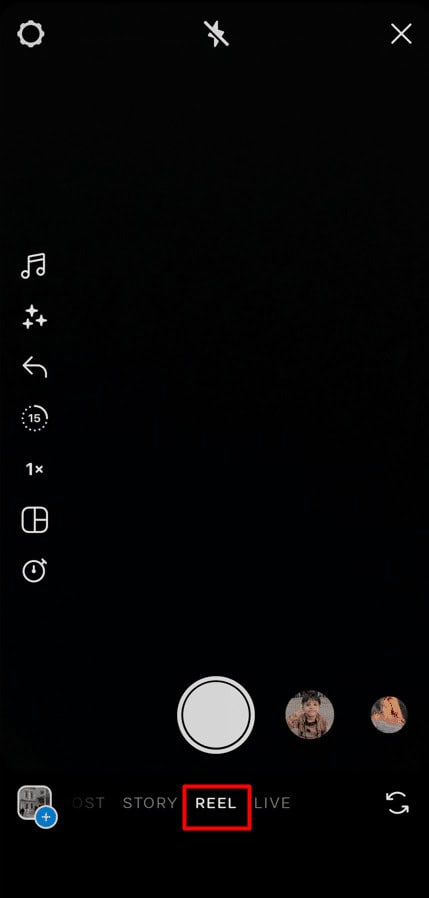
Method 4: Resize Your Video Before Uploading
Resizing your video to the recommended Instagram size before uploading can help maintain its quality. You can use video editing software to resize your video according to Instagram’s specifications. Read 25 Best Free Video Cutter Apps to find the best app for resizing your video.

By following the tips mentioned above, you can ensure that your videos look their best on Instagram. Remember to optimize your video for Instagram’s aspect ratio, use the right video format and codec, and keep your video short and sweet. These tips can help you to upload high-quality videos to Instagram that will captivate your audience.
Can I Upload 4K Video to Instagram?
No , you cannot upload 4K videos to Instagram. Instagram only supports videos with a maximum resolution of 1080 x 1920 . Even if you attempt to upload a 4K video, Instagram will compress it significantly, resulting in a reduction in its quality.
