What is Performance Monitor? Many times it occurs that our computer just ceases to respond, shuts down unexpectedly or behaves abnormally. There could be a number of reasons for such behavior and pointing out the exact reason could be of great help. Windows has a tool named Performance Monitor, which you can use for this purpose. With this tool, you can keep a check on the performance of your system and identify how different programs affect the system performance. You can analyze data related to your processor, memory, network, hard drive, etc. It can tell you how the system resources are managed and other configuration information that might be useful for you. It can also collect and log the data in files, which can be analyzed later. Read on to see how you can use Performance Monitor to fix performance related issues in Windows 10.

- How to open Performance Monitor
- How to Use Performance Monitor in Windows 10
- How to add new counters under Performance Monitor
- How to Customize the Counter View in Performance Monitor
- Some Common Performance Counters
- How to Create a Data Collector Sets
- How to Use Reports to Analyse Collected Data
How to open Performance Monitor
You can use Performance Monitor on Windows 10 to analyze data and keep a check on the performance of your system, but first, you must know how to open this tool. There are many ways to open the Windows Performance Monitor, let’s see a few of them:
- Type “ performance monitor ” in the search field located on your taskbar.
- Click on the Performance Monitor shortcut to open it.

To open Performance Monitor using Run,
- Press Windows key + R to open Run.
- Type perfmon and click on OK.

To open Performance Monitor using Control Panel,
- Use the search field on your taskbar to open the Control panel.
- Click on ‘ System and Security ’ then click on ‘ Administrative tools ’.
- In the new window, click on ‘ Performance Monitor ’.
How to Use Performance Monitor in Windows 10
Make sure to create a restore point just in case something goes wrong.
When you first open Performance Monitor, you will see the overview and system summary.

Now, from the left pane, select ‘ Performance Monitor ’ under ‘ Monitoring Tools ’. The graph you see here is the processor time over last 100 seconds. The horizontal axis displays time and the vertical axis displays the percentage of time your processor consumes working on the active programs.

Apart from the ‘ Processor Time ’ counter, you can also analyze many other counters.
How to add new counters under Performance Monitor
1.Click on the green plus shaped icon on top of the graph.
2.The Add Counters window will open.
3.Now, select the name of your computer (usually it is a local computer) in the ‘ Select counters from computer ’ drop-down menu.

4.Now, expand the category of counters you want, say Processor.
5.Select one or more counters from the list. To add more than one counters, select the first counter , then press down the Ctrl key while selecting the counters.

6.Select the instances of the selected object(s) if possible.
7.Click on Add button to add the counters. The added counters will be shown on the right side.

8.Click on OK to confirm.
9.You will see that the new counters start to appear in the graph with different colors.

10.The details of each counter will be shown at the bottom, like which colors correspond to it, its scale, instance, object, etc.
11.Use the checkbox against each to counter to show or hide it from the graph.
12.You can add more counters by following the same steps as given above.
Once you have added all the desired counters, it is time to customize them.
How to Customize the Counter View in Performance Monitor
1.Double-click on any counter below the graph.
2.To select more than one counters, press down Ctrl key while selecting the counters. Then right-click and select Properties from the list.
3.Performance Monitor Properties window will open, from there switch to the ‘ Data ’ tab.

4.Here you can select the color, scale, width, and style of the counter.
5.Click on Apply followed by OK.
An important thing to note here is that when you restart performance monitor, all these set counters and configurations will be lost by default . To save these configurations, right-click on the graph and select ‘ Save settings as ’ from the menu.

Type the desired file name and click on Save. The file will be saved as a .htm file . Once saved, there are two ways of loading the saved file for later use,
- Right-click on the saved file and select Internet Explorer as the ‘Open with’ program.
- You will be able to see the performance monitor graph in the internet explorer window.
- If you don’t see the graph already, click on ‘ Allow blocked content ’ in the popup.

Another way to load it is by pasting counter list. However, this method may not work for some of the users.
- Open the saved file using notepad and copy its contents.
- Now open Performance Monitor by using the steps given before and click on ‘ Paste Counter list ’ icon on top of the graph.
The third icon above the graph is for changing graph type. Click on the downward arrow beside it to select the type of graph. You can choose from line, histogram bar or report. You can also press Ctrl + G to switch between the graph types. The screenshots shown above correspond to the line graph. The histogram bar looks like this:

The report will look like this:

The pause button on the toolbar will allow you to freeze the constantly changing graph at any instance, if you want to analyze it. You can resume by clicking on the play button.
Some Common Performance Counters
Processor:
- % Processor Time: This is the percentage of time spent by the processor in executing a non-idle thread. If this percentage stays over 80% constantly, it means it is difficult for your processor to handle all the processes.
- % Interrupt Time: This is the time required by your processor to receive and service hardware requests or interrupts. If this time exceeds 30%, there might be some hardware related risk.
Memory:
- % Committed Bytes In Use: This counter shows what percentage of your RAM is currently in use or is committed. This counter should fluctuate values as different programs are opened and closed. But if it keeps on increasing, there might be a memory leak.
- Available Bytes: This counter depicts the amount of physical memory (in Bytes) that are available for immediately allocating it to a process or system. A less than 5% of available bytes means you have very less memory free and may need to add more memory.
- Cache Bytes: This counter tracks the part of system cache which is currently active in physical memory.
Paging File:
- % Usage: This counter tells the percentage of current pagefile in use. It should not be higher than 10%.
PhysicalDisk:
- % Disk Time: This counter monitors the time taken by a drive to process read and write requests. This should not be too high.
- Disk Read Bytes/sec: This counter maps the rate at which bytes are transferred from the disk during the read operations.
- Disk Write Bytes/sec: This counter maps the rate at which bytes are transferred to the disk during write operations.
Network Interface:
Bytes Received/sec: It represents the rate of bytes being received over each network adapter.
Bytes Sent/sec: It represents the rate of bytes being sent over each network adapter.
Bytes Total/sec: It includes both Bytes Received and Bytes Sent. If this percentage lies between 40%-65%, you should be cautious. For over 65%, the performance will be adversely affected.
% Processor Time: It tracks the amount of processor’s effort which is used by an individual thread.
For more information, you can go to the Microsoft website .
How to Create a Data Collector Sets
A data collector set is a combination of one or more performance counters which can be saved to collect data over a period of time or on demand. These are especially useful when you want to monitor a component of your system over a specified time period, for instance, every month. There are two predefined sets available,
System Diagnostics: This data collector set can be used troubleshooting issues related to driver failures, faulty hardware, etc. It includes data collected from System Performance along with other detailed system information.
System Performance: This data collector set can be used to handle performance related issues like a slow computer. It collects data related to memory, processor, disk, network performance, etc.
To access these, expand ‘ Data Collector Sets ’ in the left pane on Performance Monitor window and click on System.

To Create a Custom Data Collector Set in Performance Monitor,
1.Expand ‘ Data Collector Sets ’ in the left pane on Performance Monitor window.
2.Right-click on ‘ User Defined ’ then select New and click on ‘ Data Collector Set ’.

3.Type a name for the set and select ‘ Create manually (Advanced) ’ and click on Next.

4.Select ‘ Create data logs ’ option and check the ‘ Performance counter ’ checkbox.

5.Click Next then click on Add.

6.Select one or more counters you want then click on Add and then click OK.
- Set the sample interval , to decide when the Performance Monitor takes samples or collects data and click on Next.

- Set the location where you want it to be saved and click on Next.

- Select a specific user you want or keep it default.
10.Select ‘ Save and Close ’ option and click on Finish.

This set will available in the User Defined section of the Data Collector Sets.

Right-click on the set and select Start to start it.

To customize the run duration for your data collector set,
1.Right-click on your data collector set and select Properties.
2.Switch to ‘ Stop condition ’ tab and check the ‘ Overall duration ’ checkbox.
- Type the time duration for which you want Performance Monitor to run.

4.Set other configurations then click on Apply followed by OK.
To schedule the set to run automatically,
1.Right-click on your data collector set and select Properties.
2.Switch to ‘ Schedule ’ tab then click on Add.
- Set the schedule you want then click on OK.

4.Click on Apply and then click on OK.
How to Use Reports to Analyse Collected Data
You can use reports to analyze the data collected. You can open reports for both predefined data collector sets and your custom sets. To open system reports,
- Expand ‘ Reports ’ from the left pane of the Performance Monitor window.
- Click on System then click on System Diagnostics or System Performance to open the report.
- You will be able to see the data and results organized and structured into tables that you can use to quickly identify problems.

To open a custom report,
- Expand ‘ Reports ’ from the left pane of the Performance Monitor window.
- Click on User Defined then click on your custom report.
- Here you will see the recorded data directly instead of results and structured data.

Using Performance Monitor, you can carry out the analysis for almost every part of your system easily.
Recommended:
- Fix USB Composite Device can’t work properly with USB 3.0
- Why is Windows 10 Updates Extremely Slow?
- Print Screen Not Working? 7 Ways to Fix it!
- Disable OneDrive on Windows 10 PC
I hope this article was helpful and you can now easily Use Performance Monitor on Windows 10 , but if you still have any questions regarding this tutorial then feel free to ask them in the comment’s section.

- What is Print Screen and its uses?
- 7 Ways to Fix Print Screen Not Working in Windows 10
- What To Do If Your Print Screen Key Does Not Work?
- Method 1: Update your keyboard driver
- Method 2: Disable the F Lock or F Mode
- Method 3: Make sure Windows is up to date
- Method 4: Stop Background programs
- Method 5: Perform a Clean Boot
- Method 6: Configure Alternate Hotkeys for the Print Screen key
- Method 7: Use the Snipping Tool
What is Print Screen and its uses?
Basically, Print Screen saves a bitmap image of the current screen or screenshot to the Windows clipboard , while pressing the Alt key in combination with Print Screen (Prt Sc) will capture the currently selected window. This image then can be saved by using the paint or any other editing application. Another use of the Prt Sc key is that when pressing in combination with both the left Alt and left Shift key will turn on a high contrast mode .
With the introduction of Windows 8 (also in Windows 10), you can press Windows Key in combination with the Prt Sc key will capture the screenshot and saved this image to the disk (the default picture location). Print screen is often abbreviated as:
Print Scrn

Prnt Scrn

Prt Scrn

Prt Scn

Prt Scr

Prt Sc

Pr Sc
7 Ways to Fix Print Screen Not Working in Windows 10
Before making any changes to your system, make sure to create a restore point . Just in case something goes wrong, you will be able to restore your system to an earlier configuration when everything was working correctly.
What To Do If Your Print Screen Key Does Not Work?
So if you’re not able to take screenshots in Windows 10 or the Print Screen key is not working then don’t worry as today we are going to see how to fix this issue. If the print screen doesn’t work then try Windows Key + PrtSc key and if this also doesn’t worry then don’t panic. So without wasting any time let’s see the resolve Print Screen not working issue with the help of the below-listed troubleshooting guide.
Note: First, try to use the print screen key again, simply press the Print Screen key (PrtSc) then open Paint and press Ctrl + V to paste the captures screenshot, does it work? If it didn’t then sometimes you need to use the function key in addition to the print screen key, so press Fn + PrtSc and see if this works. If it didn’t then continue with the below fixes.
Method 1: Update your keyboard driver
- Press Windows Key + R then type “ devmgmt.msc ” and hit Enter to open Device Manager.

- Expand Keyboard then right-click on Standard PS/2 Keyboard and select Update Driver.

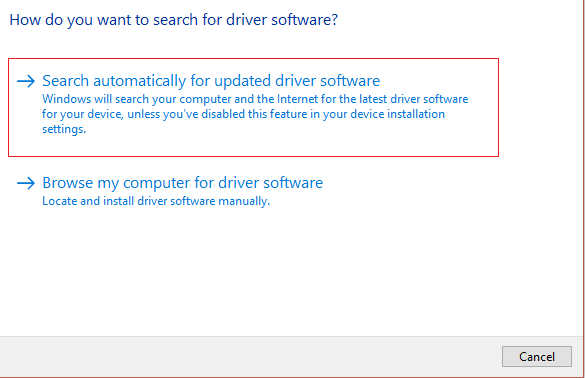
- First, select Search automatically for updated driver software and wait for Windows to automatically install the latest driver.
Reboot your PC and see if you’re able to fix the issue, if not then continue.
Again go back to Device Manager and right-click on Standard PS/2 Keyboard and select Update Driver.
This time select “ Browse my computer for driver software. ”

- On the next screen click on “ Let me pick from a list of available drivers on my computer. ”

Select the latest drivers from the list and click Next.
Reboot your PC to save changes and see if you’re able to fix the Print Screen not working in Windows 10 issue, if not then continue with the next method.
Method 2: Disable the F Lock or F Mode
See if you have an F Mode key or an F Lock key on your keyboard. Because such keys will prevent you from taking screenshots, thus disabling the print screen key. So press the F Mode or F Lock key and again try to use the Print Screen Key.
Method 3: Make sure Windows is up to date
- Press Windows Key + I to open Settings then click on the Update & Security icon.

- Then under Update status click on “ Check for updates. ”
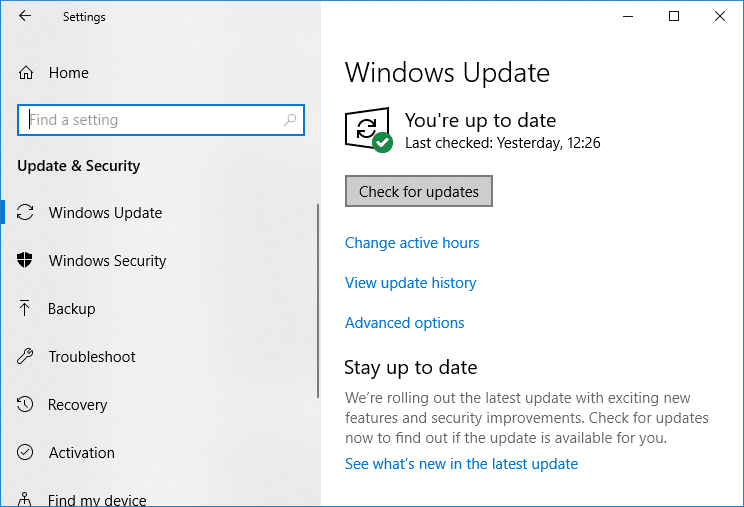
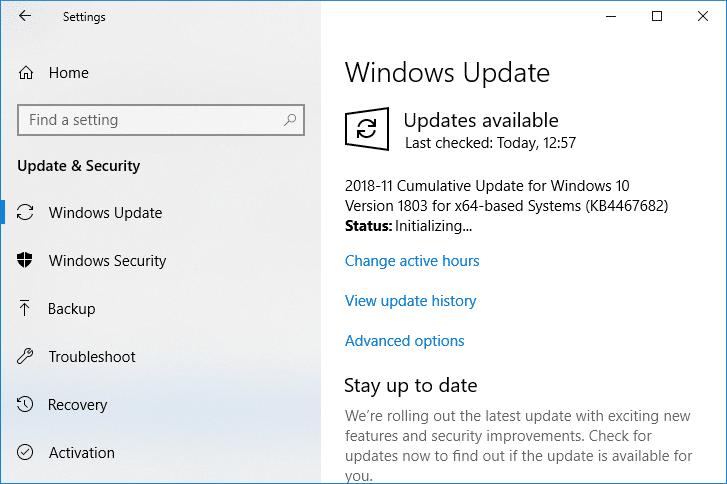
- If an update is found for your PC, install the update and reboot your PC.
Method 4: Stop Background programs
Press Ctrl + Shift + Esc key together to open Task Manager.
Find the following programs then right-click on each of them and select “ End Task “:
OneDrive Dropbox Snippet tool

- Once finished close Task Manager and check if you’re able to fix Print Screen not working issue.
Method 5: Perform a Clean Boot
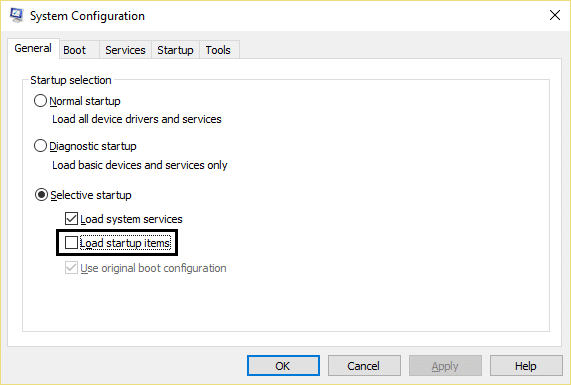
Sometimes 3rd party software can conflict with the keyboard and can cause the print screen key to not work correctly. In order to fix the issue , you need to perform a clean boot on your PC then try to use the Print Screen key to take a screenshot.
Method 6: Configure Alternate Hotkeys for the Print Screen key
Navigate to this website and download the ScreenPrint Platinum.
Install the program then open the ScreenPrint Platinum program.

- Now click on Setup from the ScreenPrint Platinum menu and select ScreenPrint.

- Click on the Hotkeys button at the bottom of the Configuration window.

- Next, checkmark “ Enable Hotkeys ” then under Global Capture Hotkey, select any character from the dropdown such as P.

Similarly, under Global Capture Hotkey checkmark Ctrl and Alt.
Finally, click the Save button and this will assign the Ctrl + Alt + P keys to substitute for the Print Screen key.
Press Ctrl + Alt + P keys together to capture the screenshot then paste it inside Paint.

Although it didn’t actually fix Print Screen not working issue, it’s a great alternative till you finally found a proper fix for it. But if you don’t want to use a third-party app then you could also use the Windows in-built Snipping Tool.
Method 7: Use the Snipping Tool
If you still failed to take a screenshot by pressing the Print Screen key then you should try to use Snipping Tool in Windows 10. In the Windows Search type snipping and click on the “ Snipping Tool ” from the search result.

This in-built tool in Windows provides a great way to take a screenshot of the portion of the currently active window or the whole screen.

Recommended:
- What is the Difference Between CC and BCC in an Email?
- Fix Cursor Jumps or moves randomly in Windows 10
- Set up Yahoo email account in Windows 10 Mail App
- How to Check Your CPU Temperature in Windows 10
That’s it you have successfully Fix Print Screen Not Working in Windows 10 Issue but if you still have any queries regarding this post then feel free to ask them in the comment section.
