
- Is it Safe to Press the WPS Button on My Router?
- What is WPS on Router?
- Advantages and Disadvantages of WPS Router
- What Does the WPS Button Do?
- Where is the WPS button on My Router?
- What Happens When I Press the WPS Button on My Router?
- Connect to a Wi-Fi Network with WPS
- How to use the WPS Button to Connect
- How to use the Pin Option to Connect
- How to Disable Wi-Fi (WPS) in Your Router?
- What will happen when WPS is Turned Off on Your Wireless Router?
Is it Safe to Press the WPS Button on My Router?
Yes, it is safe to press the WPS button on your router. Here, we have explained about WPS on router, its advantages and disadvantages and many more.
What is WPS on Router?
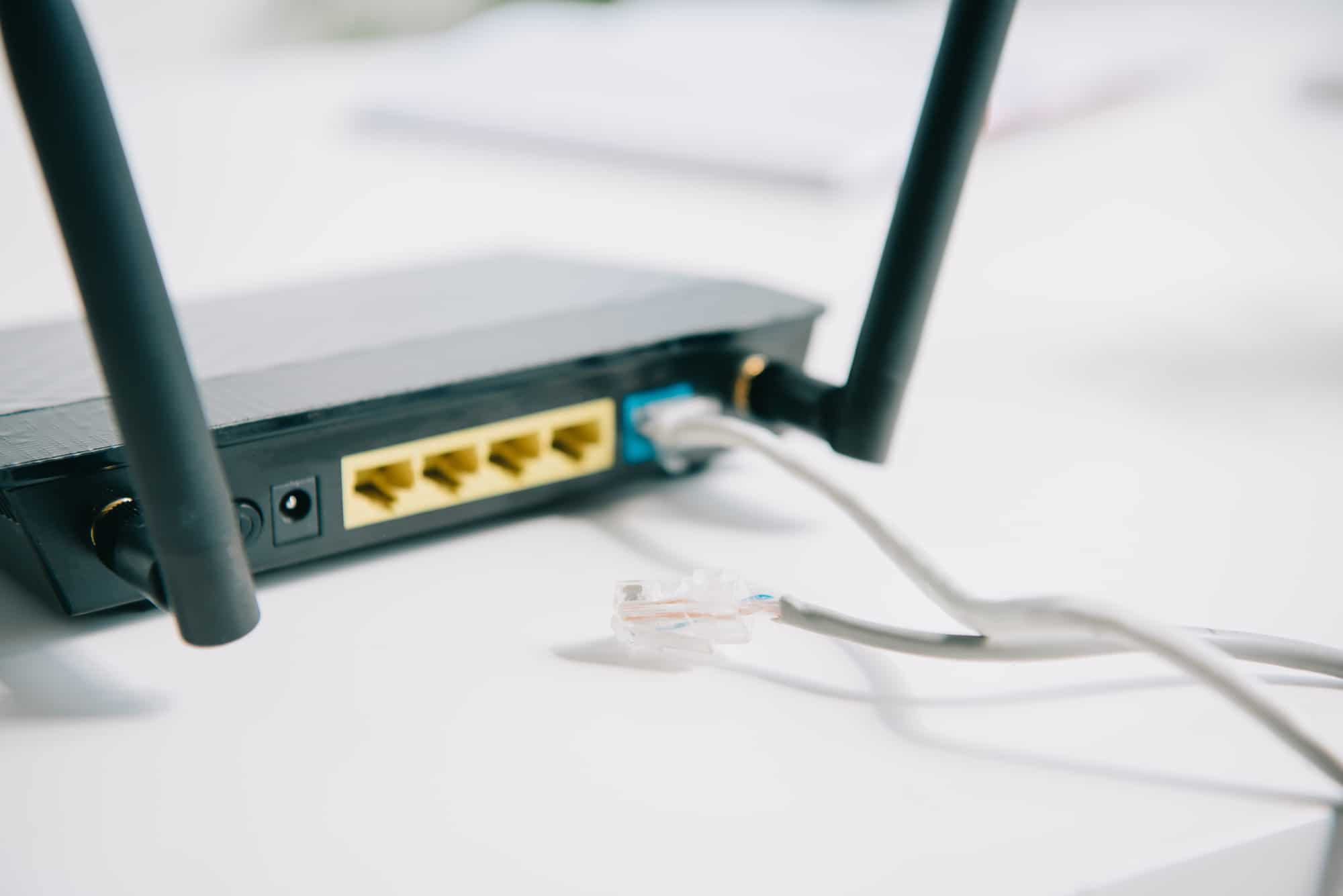
Wi-Fi Protected Setup, abbreviated as WPS, wireless network security standard . This is designed to speed up and simplify connections between wireless devices and routers. In simple words, you don’t have to enter a password to connect to the network. Wireless networks with only WPA Personal or WPA2 Personal security protocols and using passwords will support WPS. However, WPS does not function if WEP is being used as the security protocol. This is because WEP is insecure and easily breached.
Although there are several techniques for WPS, the press button method is by far the most popular. So, using this strategy, connecting would only require a few button presses. For instance, the majority of modern routers come with a physical WPS button that you may press. But what happens when I press the WPS button on my router? Will find out soon. Also, if you want to know in detail about how WPS works check out How does WPS works .
Advantages and Disadvantages of WPS Router
Advantages
- It connects all the new devices within the range automatically with less amount of effort.
- It bypasses the requirement of entering passwords .
- It is not easy to hack as the connection will close once the connection is made.
- It is easy to use , especially in closed areas such as homes.
- WPS uses an extensible authentication protocol for a safer connection between the device and the access point.
Disadvantages
- It only supports WPS-certified devices and not WEP.
- Users will face connectivity issues with non-WPS devices .
- It has many security concerns .
- WPS won’t support any ad hoc requests.
Keep reading further, if you want to know whether is it safe to press the WPS button on my router.
What Does the WPS Button Do?
WPS, which stands for Wi-Fi Protected Setup, may have caught your eye if you looked closely at your router. By using WPS, which is a handy tool, you may connect devices to your router without entering a username and password. It is an awesome technique to get rid of noting down or recollecting those bothersome string of letters or numbers.
For a home router, using a WPS button is most likely the situation. When you press the WPS button , the router will start searching for devices within the range to pair. If it can’t find any device within two minute time period, the router will stop searching for the device. Before pressing the WPS button, you need to enable the Connect to WPS option on that WPS-compatible device.
Note: Not every gadget supports WPS since many manufacturers have stopped placing WPS buttons. Therefore, some modern equipment might not even support it.
Where is the WPS button on My Router?
So, if you may have been thinking where is the WPS button on my router? The location of the WPS button varies depending on the router model and manufacturer. In some models, it is present at the back .
What Happens When I Press the WPS Button on My Router?
It establishes a connection between the devices and the router within the range. To connect via WPS, press the WPS button on the router and connected devices. These gadgets remember the network password for future use because WPS automatically transfers it. So, you don’t have to press the WPS button again to connect to the same network in the future.
Connect to a Wi-Fi Network with WPS
If you want to connect to a Wi-Fi network with WPS, you may be disappointed because not all Wi-Fi devices support WPS . If a device gives you the choice to utilize WPS during setup, it is compatible with WPS. You can connect to the router either using a password or the router’s WPS button.
Remember that all WPS-enabled devices will force reboot when you change your router’s password. To avoid any connectivity issues, you can change your password to its original setting to reconnect. Also, you can forget the router on your device and then reconnect via WPS again.
Nevertheless, there are two ways to connect to a Wi-Fi network using WPS. Both the WPS button and the Pin option can be used.
How to use the WPS Button to Connect
On your router, press the WPS button .
Enable the device’s Wireless Network Settings .

- Then, decide on a network.
How to use the Pin Option to Connect
Open your device’s Wireless Network Settings .
Choose the Network that you want to join.
Enter your router’s WPS PIN .
Note: The router’s WPS PIN will be given at the back of the router by default.
How to Disable Wi-Fi (WPS) in Your Router?
The options to disable WPS vary depending on the router’s model and manufacturer. Usually, there are two WPS ways: PIN and button .
- Using the WPS button is safer. This is because WPS cannot function without pressing the router’s WPS button. Also, it will turn off on its own after 2 minutes.
- You can also use the PIN, which is commonly used. But it is incredibly dangerous. Using this, you can disable WPS completely.
What will happen when WPS is Turned Off on Your Wireless Router?

WPS was made to make her work easier, but it also puts your security at risk . Sadly, WPS is incredibly vulnerable and can be used by intruders to access your network. So, it is recommended to turn off WPS. After disabling it, your router won’t be susceptible to any attack. Hopefully, now you might have got a brief idea as to whether is it safe to press the WPS button on my router after analyzing all its counterparts.
Q1. Why does WPS pose a security hazard?
Ans. Attackers may be able to access an encrypted Wi-Fi network by using brute-force techniques against the external registrar PIN exchange process.
Q2. What is a router?
Ans. A router is a piece of hardware that enables many devices to join the same network. Over a local network, routers are frequently used to share internet access.
Q3. Is it possible to disable WPS?
Ans. Yes , most routers will offer the option to disable this on the Wi-fi settings page.
Q4. What is the turnaround time for WPS?
Ans. The wireless router’s WPS button must be pressed and held down for roughly 2-3 seconds. Your device will eventually establish a connection with the wireless router.
Q5. How do I find out if my WPS is on?
Ans. A virtual WPS button might exist in the device’s software if there is no button on the router. The button will flash amber or orange to indicate that it is turned on.
Q6. Where on Android can I find WPS?
Ans. Due to security concerns, Android 9.0 and newer versions do not support WPS. In older models, you can find WPS settings by going to Network Settings > Wi-Fi > More Options > WPS .
Q7. In Windows, where can I find WPS?
Ans. WPS has not given its own settings menu in Windows. As we have read earlier, your device will connect automatically when you press the WPS button on the router.
Q8. What happens if the WPS button on my router is missing?
Ans. Some router models do not have a WPS button. But you can still set up your Wi-Fi network using a web browser.
Q9. How can I tell if my Wi-Fi is WPS compatible?
Ans. Follow the below rules to check the compatibility
- Check to see if the WPS option is supported by the router.
- Check if your modem or router has a WPS button .
- Also, check your Internet-capable device’s Network menu to determine if the WPS option is present.
Q10. How does WPS vary from Wi-Fi?
Ans. WPS just implements Wi-Fi security standards in an easier and more user-friendly way. Due to this, the home user can enjoy the advantages of secured Wi-Fi access. Also, WPS itself does not advocate any security standards.
Recommended:
- 8 Ways to Fix EFEAB30C NBA 2K17 Error Code
- How to Get Cox WiFi Hotspot Free Trial Code
- Where is the WPS Button on Canon Printer?
- How to Connect to Frontier Wireless Router or Modem
We sincerely hope that you can comprehend whether is it safe to press the WPS button on my router . If you have any doubts or suggestions, leave them in the comment section below. Also, let us know what you want to learn next.
The Wi-Fi Protected Setup (WPS) button allows you to easily connect your Canon printer to a wireless network. However, locating this button can sometimes be confusing, as its placement varies across Canon printer models. This article will explain what the WPS button is, why it is useful for connecting your printer wirelessly, and guide you to finding its location on some common Canon printer models like the PIXMA, MAXIFY, and imageCLASS series. With step-by-step instructions and images highlighting button locations, you’ll learn where to access WPS on your specific Canon printer.

- Where is the WPS Button on Canon Printer?
- How to Set Up the Canon Printer to the WLAN using the WPS button
- Method 1: Through WPS Button
- Method 2: Through WPS Settings Menu
Where is the WPS Button on Canon Printer?
The Canon Printer comes with a WPS button that enables you to connect the Printer to a Local Area Network. The WPS method, also known as the Push button method is a method of connecting the Canon Printer to an access point Wireless Router or a Gateway. The WPS button will let you connect the Canon Printer to the Wireless Local Area Network (WLAN) on the building. The WPS button is available on the panel and is indicated by a Wireless icon on the button. This button is extremely useful if you have connected all the devices on a particular office building to a common network, and you can use any of the PCs to print the file using the same Printer.
How to Set Up the Canon Printer to the WLAN using the WPS button
Understanding the function and accessibility of this connection feature will make establishing wireless printing much simpler. So if you’ve been wondering, “Where is the WPS button on my Canon printer?”, read on for clear explanations tailored to your machine.
There are two methods to set up the Canon Printer to the Wireless Local Area Network on your building:
Method 1: Through WPS Button
The first method is using the WPS button on the Canon Printer and the setup process is very simple. All you need to do is to enable the buttons on the devices to let the devices automatically get connected to the network.
- Find the location of the WPS button on the Canon Printer panel .
Note: If the WPS button is activated on your Canon Printer, you can see the Wi-Fi lamp flash on rhythmically on the Canon Printer.
- Press the WPS button on the Wireless Router within 2 minutes and you should see the devices getting connected.
Note 1: If you haven’t activated the WPS button on the Wireless router within 2 minutes, the devices may not get connected.
Note 2: Turn off the Wi-Fi connection on all the unpaired devices while you are setting up the Canon Printer to the WLAN router for quick connectivity.

Method 2: Through WPS Settings Menu
If your Canon Printer has no WPS button on the panel, then, you can follow the options in this method to connect your Canon Printer to the WLAN network. You will be able to access the WPS settings using the options discussed below and you can easily connect the Printer to the Network.
Option I: Using HOME Button
The first option is to use the HOME button on the Canon Printer panel. If you are perplexed with the question of where is the WPS button on Canon Printer, you can use this option to access the WPS settings on the Canon Printer using the HOME button.
- Enter the Printer’s setup menu using the MENU button on the Canon Printer’s panel.

- Use the arrow keys to move to the WLAN icon on the screen and press the left function key beneath the arrow keys to select it.

- Navigate to the Wireless LAN Setup in the Settings screen using the arrow keys on the Canon Printer panel and then press the OK button.
Note 1: The Wireless LAN Setup may be also available as the Wireless Setup or the Network Setup on the screen.
Note 2: The Wi-Fi lamp on the bottom-left part of the Printer’s panel would flash on when the wireless connection of the Canon Printer is enabled.
- In the Wireless LAN setup screen, move to the WPS (Push button method) tab and press the OK button to select the option.

Press the OK button on the next screen to confirm the selection.
Press the WPS button on the Wireless Router for 2 minutes for the connection to take place.
Press the OK button on the Canon Printer within 2minutes to connect the Printer to the Wireless LAN network.
Option II: Using Setup Button
The second option to connect the Canon Printer to the WLAN is using the Setup button on the Canon Printer panel. If you cannot find the answer to the question of where is the WPS button on Canon Printer but can easily access the WLAN settings that will allow you to connect to the Wireless router.
Press the Setup button indicated by the Tools icon on the Canon Printer’s panel.
Move to the Wireless LAN setup tab on the screen and press the OK button on the Setup Menu.
Press the Stop/ Reset button on the Printer’s panel, select the Wireless LAN Setup Standard Setup option displayed on the screen, and press the OK button on the panel.

- Navigate to the specific network in the list of available networks on the screen and press the OK button twice.
Note: If the network is not displayed, use the arrow keys to select the Search again option on the screen and press the OK button.
- Enter the security Passphrase on the next screen using the numeric keys on the Printer panel and press the OK button.
Note: Press the * key to toggle between the Uppercase and lowercase characters in the numeric pad.
- Press the OK button to complete the setup of the Wi-Fi network to your Canon Printer.
Recommended:
- Fix Login Failed Your Account Cannot Play on this Platform Fortnite
- Which is Better Between 21:9 vs 16:9 Monitors?
- 13 Best Cheap Android TV Box
- Fix WD My Passport Ultra Not Detected on Windows 10
