Fix mouse and keyboard not working in Windows 10: Whenever you start your computer, the keyboard and mouse stop working on the welcome screen and you don’t know what to do in this situation. Then don’t worry! We will help you troubleshoot this issue shortly. Keep reading till the end to learn the causes behind the issue and how to fix it!

- Mouse and Keyboard Not Working in Windows 10 [SOLVED]
- Method 1: Enable Legacy USB Support in BIOS
- Method 2: System Restore
- Method 3: Boot into Safe Mode
- Option 1: Turn off Filter Keys
- Option 2: Run Hardware and Devices Troubleshooter
- Option 3: Uninstall Sypnatic Software
- Option 4: Uninstall Keyboard and Mouse Drivers
- Option 5: Update Keyboard and Mouse Drivers
- Option 6: Disable Fast Startup
- Option 7: Repair Install Windows 10
Mouse and Keyboard Not Working in Windows 10 [SOLVED]
The problem also occurs if you have recently updated to Windows 10 as the old drivers sometimes become incompatible with the new version of Windows. It doesn’t matter if you use a USB or PS/2 mouse or keyboard as both of them will be stuck on the welcome screen and you won’t be able to restart your PC, you need to manually power off by holding the power button.
Sometimes the mouse and keyboard work in Safe Mode. In such a case, it’s possibly a driver problem. So the mouse and keyboard drivers might have become corrupted, outdated, or incompatible with your Windows. But it’s also possible that some 3rd party software or driver is conflicting with mouse and keyboard drivers which might be causing the issue.
Now the issue can be caused by number things including the above-listed reasons—for example, hardware issues, Windows turning off system USB ports, Fast Startup issues, etc. So without wasting any time let’s see how to actually fix the mouse and keyboard not working in Windows 10 with the help of the below-listed troubleshooting guide.
Before moving forward please try to check your hardware:
- Unplug all USB attachments and restart your PC then again plug in your mouse and keyboard
- Unplug your USB Mouse and then plug it back in after a few minutes
- Try using a different USB Port and see if it works
- Check if other USB devices are working or not
- Make sure the cable connecting USB Ports isn’t damaged
- Try to check your USB Device on another PC in order to verify if it’s working or not
- Make sure there’s no dirt blocking USB Ports
- If you use a Wireless Mouse, try resetting it
Quick Answer To resolve the mouse and keyboard not working issue, try these basic tips: 1. Unplug the power adapter and other devices. Press and hold the Power button for 15-30 seconds. Then, reconnect power adapter and press the Power button after a few minutes. 2. Also, boot your device in safe mode to resolve minor glitches.
Note 1: Make sure to create a restore point just in case something goes wrong.
Note 2: To resolve the said issue, use a spare mouse or keyboard to perform the below methods.
Method 1: Enable Legacy USB Support in BIOS
USB legacy support is a backward compatibility feature in BIOS that allows you to use older versions of USB devices. So follow the below steps to enable this feature:
- Turn off your laptop. Then turn it on and simultaneously press F2, DEL or F12 (depending on your manufacturer) to enter into BIOS setup.

Navigate to Advanced using the arrow keys.
Go to USB Configuration and then disable USB legacy support.
Exit saving changes and check if you’re able to fix mouse and keyboard not working in Windows 10.
Method 2: System Restore
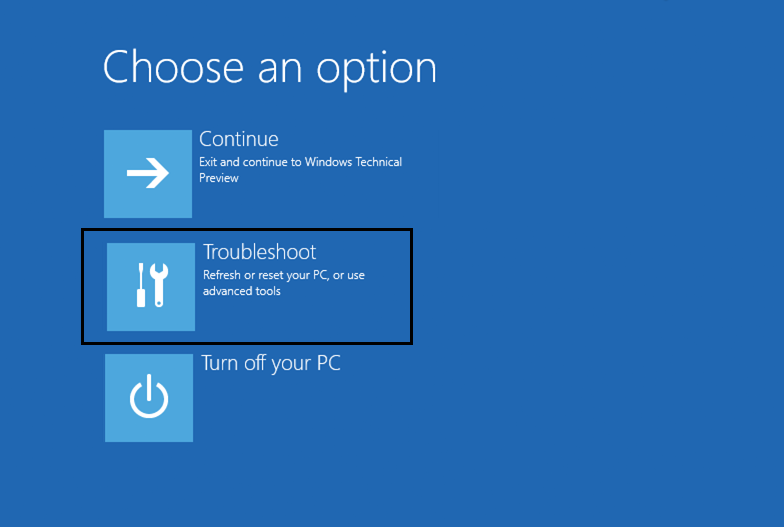
When your Computer boots up, interrupt the power supply or hold the power button to switch off your system. Do this a couple of times when Windows 10 is loading, in order to boot Windows in recovery mode. Once the PC boots into Recovery Mode try System Restore in order to fix the issue.
- On Choose an option screen, click Troubleshoot .
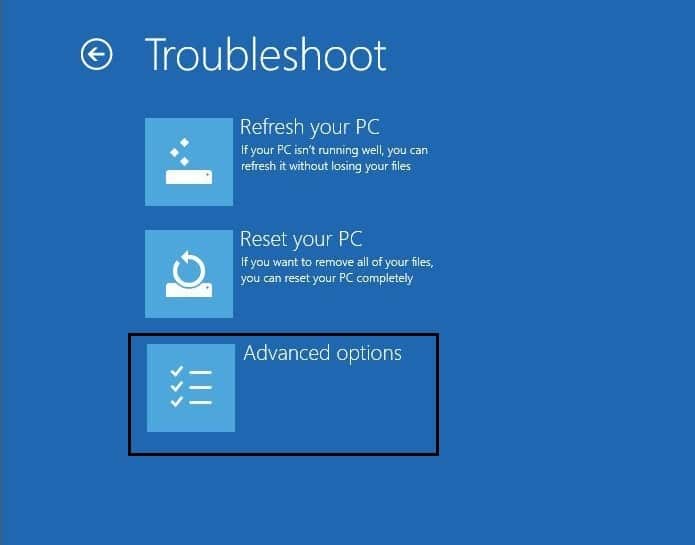
- On Troubleshoot screen, click Advanced options .
- Finally, click on System Restore and follow the on-screen instructions to complete the restore.

- Restart your PC and this step may have fixed the issue of the mouse and keyboard not working.
You could also try Boot into Last Known Good Configuration (advanced) and see if it does have any effect on your PC.

Method 3: Boot into Safe Mode
If some other driver or 3rd party software is conflicting with Mouse and Keyboard, then the Safe Mode will help you fix the issue. Boot into Safe Mode by following the steps in our guide. See if you’re able to use Mouse and Keyboard normally and if it works then uninstall all the 3rd party apps and programs. Also, make sure to try the below-listed methods in Safe Mode if your mouse or keyboard works.
Try to use a USB or Wireless Mouse or use a PS2-connector mouse, or the On-screen keyboard in order to access your system and then try the following method:
Option 1: Turn off Filter Keys
To regain control of your keyboard settings, you have to turn off the Filter Keys. This will also resolve unwanted delays while typing. Follow the steps below to do so:
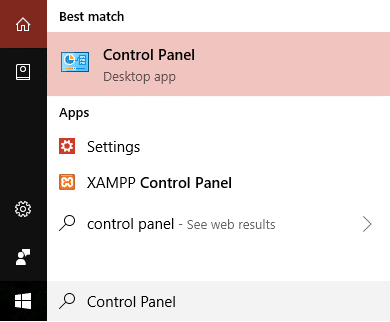
- Type control in the Windows Search then click on Control Panel.
- Set View by as Category and click on Ease of Access .

Again, click on Ease of Access.
Scroll down and select Make the keyboard easier to use option .

- Uncheck Turn on Filter Keys under Make it easier to type section.

Click on Apply > OK .
Reboot your PC to save changes and see if you are able to fix mouse and keyboard not working in Windows 10.
Option 2: Run Hardware and Devices Troubleshooter
Running this troubleshooter will help you fix the mouse and keyboard not working in Windows 10. Follow the below steps:
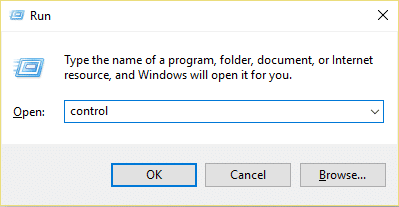
Press the Windows key + R button to open the Run dialog box .
Type control and then press Enter .
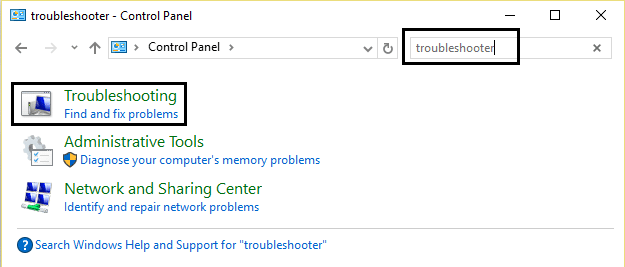
- Search Troubleshooter and click on Troubleshooting.
Next, click on View all in the left pane.
Click on Hardware and Devices.

Option 3: Uninstall Sypnatic Software
Synaptic software enhances the functionality of your computer’s touchpad. This leads to a seamless and intuitive user experience. But sometimes, it can cause issues with your mouse and keyboard functionalities. So, it is advised to uninstall this software.
- Type control in the Windows Search and click on Control Panel .
Now, click on Uninstall a program and find Sypnatics in the list.
Right-click on it and select Uninstall.

- Reboot your PC and see if you are able to fix mouse and keyboard not working in Windows 10.
Option 4: Uninstall Keyboardand Mouse Drivers
If you’re still not able to fix the mouse and keyboard not working in Windows 10, then you can uninstall and reinstall the latest drivers of the Keyboard manually or from the manufacturer’s website. Read our guide on How to Uninstall and Reinstall Drivers on Windows 10 and implement the same for keyboard drivers.

Option 5: Update Keyboard and Mouse Drivers
The above-discussed issue can be due to outdated keyboard drivers too. So, we recommend you to update keyboard and mouse drivers to the latest version. Follow the below steps to do so:
- Press Windows Key + R , then type devmgmt.msc and hit Enter to open Device Manager .

- Expand Keyboard , then right-click on Standard PS/2 Keyboard and select Update Driver Software .

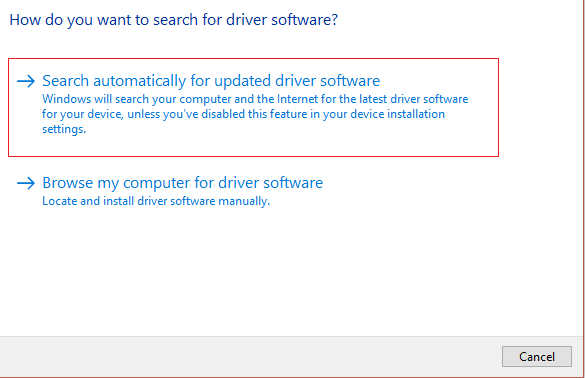
- First, select Search automatically for updated driver software and wait for Windows to automatically install the latest driver.
Reboot your PC and see if you’re able to fix the issue. If not, proceed further.
Again go back to Device Manager , right-click on Standard PS/2 Keyboard and select Update Driver.
Now, select Browse my computer for driver software .

- On the next screen, click on Let me pick from a list of available drivers on my computer .

Select the latest drivers from the list and click Next .
Reboot your PC to save changes.
Follow the same steps to update mouse drivers on your computer.
Option 6: Disable Fast Startup
Fast Startup on Windows 10 reduces your device boot-up time, getting you to your desktop quicker. When enabled, it combines elements of hibernation and shutdown to save a snapshot of its current state before shutting down, resulting in a faster startup process. But this might also cause issues with the mouse and keyboard. So, follow the below steps to disable this feature:
Press Windows Key + R , then type control and hit Enter to open Control Panel.
Click on Hardware and Sound then click on Power Options .

- Then from the left window pane, select Choose what the power buttons do .

- Now click on Change settings that are currently unavailable .

- Uncheck Turn on fast startup (recommended) and click on Save changes .

Option 7: Repair Install Windows 10
This method is the last resort. Because if nothing works out, then this method will surely repair all problems with your PC. Repair Install just using an in-place upgrade to repair issues with the system without deleting user data present on the system. So follow this article to see How to Repair Install Windows 10 Easily.
- Fix Keyboard Not Working on Windows 10
- Fix MSCONFIG Won’t Save Changes on Windows 10
- How to Fix Windows Update error 0x80248007
- Fix Your PC isn’t connected to the internet error
