The HomeGroup feature of Windows allowed users to share files and resources with other Windows computers over a small network, say their home or office network. With HomeGroup, users could easily share documents, images, media, printers, etc. over a local network easily. However, Microsoft removed this feature from Windows 10 (Version 1803) , which is why after this update, HomeGroup won’t appear in File Explorer, Control Panel or the Troubleshoot screen from this version onwards. Users will no longer be able to share their resources over a network using HomeGroup, but some other Windows will provide file and printer sharing options.

Note that the previously shared files or printers will still be available and will continue to be shared. You can access them through File Explorer. Type the name of the computer and the shared folder name in the following format: \homePC\SharedFolderName. Additionally, you can still access any shared printers through the Print dialog box.
Also, note that the HomeGroup option will still appear when you right-click on a file and select ‘Give access to’. However, it won’t do anything if you click on it.
In this article, we will talk about how you can share files and printers without HomeGroup.
- Share files and printers without HomeGroup on Windows 10
- Method 1: Use an App to Share
- Method 2: Use Onedrive
- Method 3: Share over a Network
- Share Your Files Or Folders
- Access The Shared Folder
- In Case Of Problem
- Sharing Printers
- Connect The Devices To This Printer
Share files and printers without HomeGroup on Windows 10
In the absence of HomeGroup, you can share files using one of the three given methods:
Method 1: Use an App to Share
If you want to share files with someone only a few times and wouldn’t require a regular connection, you can use the Windows Share functionality. To share files using this method,
Go to File Explorer.
Locate the folder where the file you want to share is present.
Select one or more files you want to share . You can share multiple files by pressing down the Ctrl key while selecting files.
Now, click on the ‘ Share ’ tab.
Click on ‘ Share ’.

- Choose the app that you want to share your file through.

Follow any further instructions provided.
Your file will be shared.
You can also send the selected files as an email by clicking on the Email in the Share tab.
Method 2: Use Onedrive
You can also share your OneDrive files saved on your PC. For this,
Go to File Explorer.
Move on to the OneDrive folder where the files you want to share are located.
Right-click on the file that you want to share.
Select ‘ Share a OneDrive link ’.

On doing this, a link to your file will be created and placed on your clipboard.
You can paste and send this link through your desired service like email.
Your file will be shared.
You can also right-click on your file and select ‘ More OneDrive sharing options ’ to configure expiration date, password, edit access, etc.
Method 3: Share over a Network
To share files over a local network, you can use this method. Before, sharing your files over a network, you will have to enable file and printer sharing options.
Enable Network Discovery And Sharing Options
To enable the sharing options,
Click on the Start button on your taskbar.
Click on the gear icon to open Settings.

Click on ‘Network & Internet’ in the settings window.
Click on ‘Sharing options’ .

The advanced sharing settings window will open.
Under the ‘ Private ’ section, click on the radio button for ‘Turn on Network discovery’ .
Ensure that ‘ Turn on automatic setup of networked connected devices ’ checkbox is also checked.

Also enable the ‘ Turn on file and printer sharing ’ radio button.
Further, expand the ‘All Networks’ block.
You can optionally turn on ‘ Public folder sharing ’ if you want people on your home network to be able to access or modify your default public folders.
You can also choose to enable password protected sharing if you need it.

Click on ‘Save changes’ .
Network discovery will be enabled on your computer.
Follow the same steps on each computer on your local network.
All the computers on your network will appear in the ‘ Network’ section of your File Explorer.

Share Your Files Or Folders
Once you have configured these settings on all your desired computers, you can share your files by following the steps below:
Go to File Explorer.
Go to the location of your file or folder that you want to share and right-click on it and select ‘Give access to’ from the menu. Click on ‘Specific people…’

- In the ‘Network access’ window, select the users that you want to share your folder with. If you select a specific user, then the user will have to provide the username and password to access the resource or the user should be logged in to an account with the same credentials on their device. If you select ‘ everyone ’ in the drop-down list, then your resource will be shared with everyone without having to enter credentials.

Click on the Add button after selecting the desired users.
To decide the access permissions, click on the drop-down menu under the ‘Permission Level’ column. Choose read if you want the user to only view the file and not modify it. Select read/write if you want the user to be able to read and make changes to the shared file.

Click on Share .
You will be given the link to the folder.

Note that other devices will be able to access the shared content only if the sharing device is active and connected to the network.
Access The Shared Folder
To access this shared content from some other device you should
Open File Explorer.
Copy and paste the shared link in the address bar.
Or,
Open File Explorer and navigate to the ‘Network’ folder.
Here, you will see the list of connected devices and their shared content or resources.
In Case Of Problem
If you are not able to access the shared content, it is possible that your device is not able to map the computer name of the sharing computer to its IP address . In such a case, you should replace the computer name in the path link directly with its IP address. You will find it in the ‘Network & Internet’ section of settings, under ‘ View your network properties ’.

If the problem persists, it is possible that your device’s firewall is blocking it. To see if this is the problem, you can temporarily disable the firewall on both the devices and try accessing the shared content then. To disable the firewall,
Open Settings.
Go to ‘Update & Security’ .

Click on the ‘Windows Security’ from the left pane.
Click on ‘Firewall & network protection’ under Protection areas.

- Windows Defender Security Center window will open . Click on ‘Private network’ under Firewall & network protection heading.

- Next, disable the toggle under Windows Defender Firewall.

Now, if you can access the shared content, it means that the problem was being caused by the firewall. To fix this,
Open Windows Defender Security Center window as above.
Click on Allow an app through a firewall.

- Ensure that ‘file and printer sharing’ is enabled for the private network.

Sharing Printers
Note that file and printer sharing options should be enabled on your computer. The steps for the same have been already discussed above.
To share with other users on a local network,
- Open settings by clicking on the gear icon in the Start menu. Click on ‘Devices’ .

- Select ‘Printers & scanners’ from the left pane. Select the printer you want to share and click on ‘Manage’ .

Click on ‘Printer properties’ . In the properties window, switch to the Sharing tab.
Type an identification name for this printer.

- Click on Apply. Then click on OK.
Recommended: How To Setup Network Files Sharing On Windows 10
Connect The Devices To This Printer
Open Settings by clicking on the gear icon in the Start menu .
Click on ‘Devices’ .
Select ‘Printers & scanners’ from the left pane.
Click on ‘Add a printer or scanner’ .

- If the printer does not appear, click on ‘The printer that I want isn’t listed’ .

- Click on ‘Select a shared printer by name’ and click on Browse.

Double click on the computer which is sharing the printer. If you don’t know the name of the computer, go to settings on that computer. Type the computer name in the search box and select ‘View your PC name’ . You will see the PC (computer) name under the device name.
Select the shared printer.
Click on Select.
Click on Next.

Click on Next again and then click on Finish.
Do the same on all the computers to which you want the printer to be shared.
For a device with an older v ersion of Windows.
Go to Control Panel.
Click on ‘View devices and printers’ under the ‘Hardware and Sound’ category.

Click on ‘Add a printer’ .
Select the printer if it appears and follow the given instructions.
If your printer does not appear, click on ‘The printer that I want isn’t listed’ .

Click on ‘Select a shared printer by name’ and click on Browse.
Double click on the computer which is sharing the printer.
Select the shared printer .
Click on Select.
Click on Next.
Click on Next again and then click on Finish.
Note that other users will be able to access the printer only when the computer sharing the printer is active.
These were a few ways in which you can easily share your files and printers to other computers without using HomeGroup on Windows 10.
The HomeGroup feature of Windows allowed users to share files and resources with other Windows computers over a small network, say their home or office network. With HomeGroup, users could easily share documents, images, media, printers, etc. over a local network easily. However, Microsoft removed this feature from Windows 10 (Version 1803) , which is why after this update, HomeGroup won’t appear in File Explorer, Control Panel or the Troubleshoot screen from this version onwards. Users will no longer be able to share their resources over a network using HomeGroup, but some other Windows will provide file and printer sharing options.
Note that the previously shared files or printers will still be available and will continue to be shared. You can access them through File Explorer. Type the name of the computer and the shared folder name in the following format: \homePC\SharedFolderName. Additionally, you can still access any shared printers through the Print dialog box.
Also, note that the HomeGroup option will still appear when you right-click on a file and select ‘Give access to’. However, it won’t do anything if you click on it.
In this article, we will talk about how you can share files and printers without HomeGroup.
- Share files and printers without HomeGroup on Windows 10
- Method 1: Use an App to Share
- Method 2: Use Onedrive
- Method 3: Share over a Network
- Share Your Files Or Folders
- Access The Shared Folder
- In Case Of Problem
- Sharing Printers
- Connect The Devices To This Printer
Share files and printers without HomeGroup on Windows 10
In the absence of HomeGroup, you can share files using one of the three given methods:
Method 1: Use an App to Share
If you want to share files with someone only a few times and wouldn’t require a regular connection, you can use the Windows Share functionality. To share files using this method,
Go to File Explorer.
Locate the folder where the file you want to share is present.
Select one or more files you want to share . You can share multiple files by pressing down the Ctrl key while selecting files.
Now, click on the ‘ Share ’ tab.
Click on ‘ Share ’.
- Choose the app that you want to share your file through.
Follow any further instructions provided.
Your file will be shared.
You can also send the selected files as an email by clicking on the Email in the Share tab.
Method 2: Use Onedrive
You can also share your OneDrive files saved on your PC. For this,
Go to File Explorer.
Move on to the OneDrive folder where the files you want to share are located.
Right-click on the file that you want to share.
Select ‘ Share a OneDrive link ’.
On doing this, a link to your file will be created and placed on your clipboard.
You can paste and send this link through your desired service like email.
Your file will be shared.
You can also right-click on your file and select ‘ More OneDrive sharing options ’ to configure expiration date, password, edit access, etc.
Method 3: Share over a Network
To share files over a local network, you can use this method. Before, sharing your files over a network, you will have to enable file and printer sharing options.
Enable Network Discovery And Sharing Options
To enable the sharing options,
Click on the Start button on your taskbar.
Click on the gear icon to open Settings.
Click on ‘Network & Internet’ in the settings window.
Click on ‘Sharing options’ .
The advanced sharing settings window will open.
Under the ‘ Private ’ section, click on the radio button for ‘Turn on Network discovery’ .
Ensure that ‘ Turn on automatic setup of networked connected devices ’ checkbox is also checked.
Also enable the ‘ Turn on file and printer sharing ’ radio button.
Further, expand the ‘All Networks’ block.
You can optionally turn on ‘ Public folder sharing ’ if you want people on your home network to be able to access or modify your default public folders.
You can also choose to enable password protected sharing if you need it.
Click on ‘Save changes’ .
Network discovery will be enabled on your computer.
Follow the same steps on each computer on your local network.
All the computers on your network will appear in the ‘ Network’ section of your File Explorer.
Share Your Files Or Folders
Once you have configured these settings on all your desired computers, you can share your files by following the steps below:
Go to File Explorer.
Go to the location of your file or folder that you want to share and right-click on it and select ‘Give access to’ from the menu. Click on ‘Specific people…’
- In the ‘Network access’ window, select the users that you want to share your folder with. If you select a specific user, then the user will have to provide the username and password to access the resource or the user should be logged in to an account with the same credentials on their device. If you select ‘ everyone ’ in the drop-down list, then your resource will be shared with everyone without having to enter credentials.
Click on the Add button after selecting the desired users.
To decide the access permissions, click on the drop-down menu under the ‘Permission Level’ column. Choose read if you want the user to only view the file and not modify it. Select read/write if you want the user to be able to read and make changes to the shared file.
Click on Share .
You will be given the link to the folder.
Note that other devices will be able to access the shared content only if the sharing device is active and connected to the network.
Access The Shared Folder
To access this shared content from some other device you should
Open File Explorer.
Copy and paste the shared link in the address bar.
Or,
Open File Explorer and navigate to the ‘Network’ folder.
Here, you will see the list of connected devices and their shared content or resources.
In Case Of Problem
If you are not able to access the shared content, it is possible that your device is not able to map the computer name of the sharing computer to its IP address . In such a case, you should replace the computer name in the path link directly with its IP address. You will find it in the ‘Network & Internet’ section of settings, under ‘ View your network properties ’.
If the problem persists, it is possible that your device’s firewall is blocking it. To see if this is the problem, you can temporarily disable the firewall on both the devices and try accessing the shared content then. To disable the firewall,
Open Settings.
Go to ‘Update & Security’ .
Click on the ‘Windows Security’ from the left pane.
Click on ‘Firewall & network protection’ under Protection areas.
- Windows Defender Security Center window will open . Click on ‘Private network’ under Firewall & network protection heading.
- Next, disable the toggle under Windows Defender Firewall.
Now, if you can access the shared content, it means that the problem was being caused by the firewall. To fix this,
Open Windows Defender Security Center window as above.
Click on Allow an app through a firewall.
- Ensure that ‘file and printer sharing’ is enabled for the private network.
Sharing Printers
Note that file and printer sharing options should be enabled on your computer. The steps for the same have been already discussed above.
To share with other users on a local network,
- Open settings by clicking on the gear icon in the Start menu. Click on ‘Devices’ .
- Select ‘Printers & scanners’ from the left pane. Select the printer you want to share and click on ‘Manage’ .
Click on ‘Printer properties’ . In the properties window, switch to the Sharing tab.
Type an identification name for this printer.
- Click on Apply. Then click on OK.
Recommended: How To Setup Network Files Sharing On Windows 10
Connect The Devices To This Printer
Open Settings by clicking on the gear icon in the Start menu .
Click on ‘Devices’ .
Select ‘Printers & scanners’ from the left pane.
Click on ‘Add a printer or scanner’ .
- If the printer does not appear, click on ‘The printer that I want isn’t listed’ .
- Click on ‘Select a shared printer by name’ and click on Browse.
Double click on the computer which is sharing the printer. If you don’t know the name of the computer, go to settings on that computer. Type the computer name in the search box and select ‘View your PC name’ . You will see the PC (computer) name under the device name.
Select the shared printer.
Click on Select.
Click on Next.
Click on Next again and then click on Finish.
Do the same on all the computers to which you want the printer to be shared.
For a device with an older v ersion of Windows.
Go to Control Panel.
Click on ‘View devices and printers’ under the ‘Hardware and Sound’ category.
Click on ‘Add a printer’ .
Select the printer if it appears and follow the given instructions.
If your printer does not appear, click on ‘The printer that I want isn’t listed’ .
Click on ‘Select a shared printer by name’ and click on Browse.
Double click on the computer which is sharing the printer.
Select the shared printer .
Click on Select.
Click on Next.
Click on Next again and then click on Finish.
Note that other users will be able to access the printer only when the computer sharing the printer is active.
These were a few ways in which you can easily share your files and printers to other computers without using HomeGroup on Windows 10.
Fix Printer Driver is unavailable on Windows 10: If you’re not able to use your Printer and you face the error message that says “Driver is unavailable” then this means that the driver installed for your Printer is not compatible, outdated or corrupted. In any case, until you resolve this error you won’t be able to access your Printer. To view this message you need to head over to Devices and Printers then select your Printer and under Status, you will see “Driver is unavailable”.

This error message can be annoying, especially is you need to use the printer urgently. But don’t worry there are few easy fixes which can resolve this error and in no time you will be able to use your printer. So without wasting any time let’s see How to Fix Printer Driver is unavailable on Windows 10 with the help of the below-listed troubleshooting guide.
- Fix Printer Driver is unavailable on Windows 10
- Method 1: Uninstall the Printer Drivers
- Method 2: Make sure Windows is up to date
- Method 3: Verify the Admin Account
- Method 4: Install the Printer Drivers in Compatibility mode
- Method 5: Reinstall your Printer Drivers
- Method 6: Reset your PC
Fix Printer Driver is unavailable on Windows 10
Make sure to create a restore point just in case something goes wrong.
Method 1: Uninstall the Printer Drivers
1.Type control in Windows Search then click on the search result which says Control Panel.

2.From the Control Panel click on Hardware and Sound.

3.Next, click on Device and Printers.

4.Right-click on the printer device which shows the error “ Driver is unavailable ” and select Remove device.

5.Press Windows Key + R then type devmgmt.msc and hit Enter to open Device Manager.

6.Expand Print queues then right-click on your Printer device and select Uninstall.

Note: If you don’t have your device listed then don’t worry as it may already be removed when you remove the printer device from Devices and Printers.
7.Again click on Uninstall to confirm your actions and this will successfully remove the printer drivers from your PC.
8.Now press Windows Key + R then type appwiz.cpl and hit Enter.

9.From the Programs and Features window, uninstall any application related to your printer.

10.Disconnect your Printer from the PC, shut down your PC and router, power off your printer.
11.Wait for a few minutes then plug everything the back as it was earlier, make sure to connect your Printer to the PC using a USB cable and see if you’re able to Fix Printer Driver is unavailable on Windows 10.
Method 2: Make sure Windows is up to date
1.Press Windows Key + I to open Settings then click on Update & Security.
2.From the left-hand side, menu click on Windows Update.
3.Now click on the “ Check for updates ” button to check for any available updates.
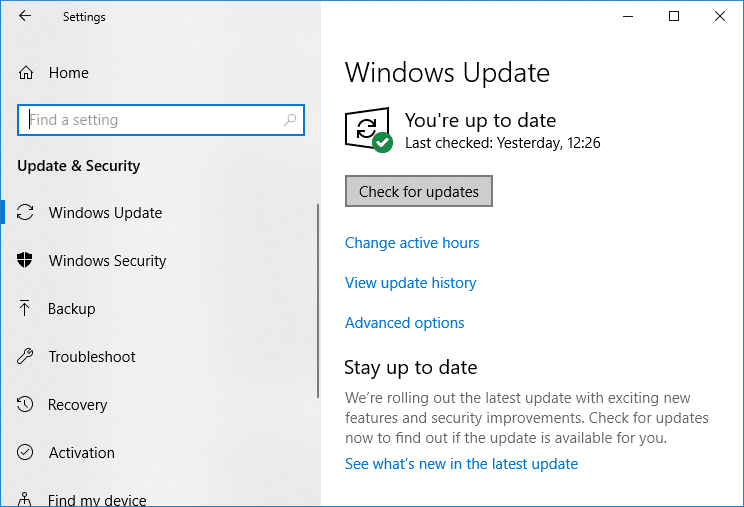
4.If any updates are pending then click on Download & Install updates.
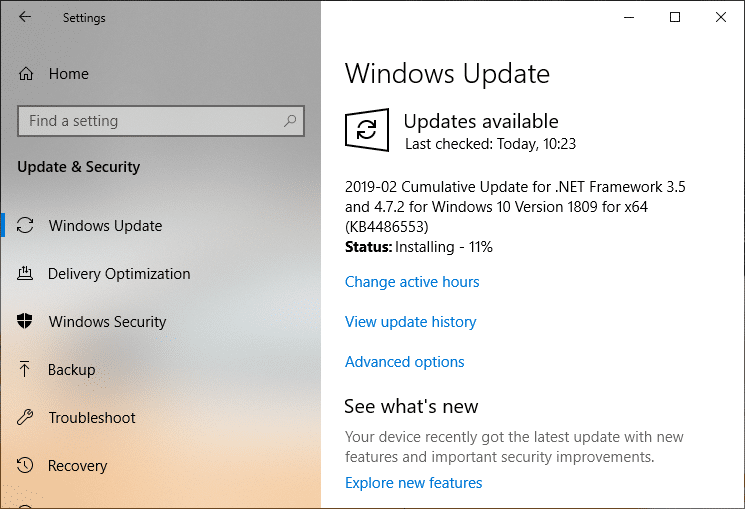
Once the updates are downloaded, install them and your Windows will become up-to-date.
Method 3: Verify the Admin Account
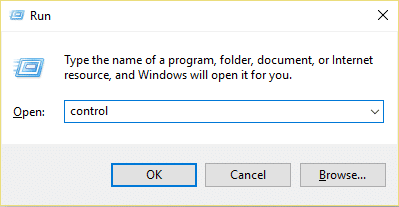
1.Press Windows Key + R then type control and hit Enter to open Control Panel.
2.Click on User Accounts then again click on User Accounts.

3.Now click on the “ Make changes to my account in PC settings ” link.

4.Click on the verify link and follow the on-screen instructions to verify your admin account.

5.Once finished, reboot your PC and again install the printer without any issues.
Method 4: Install the Printer Drivers in Compatibility mode
1.Press Windows Key + R then type devmgmt.msc and hit Enter to open Device Manager.
2.Expand Print queues then right-click on your Printer device and select Uninstall.
3.If you’re prompted to confirm then again click on the Uninstall button.
4.Now go to your printers manufacturer’s website and download the latest drivers for your printer.
5.Right-click on the setup file and select Properties.

Note: If the drivers are in a zip file make sure to unzip it then right-click on the .exe file.
6.Switch to the Compatibility Tab and checkmark “ Run this program in Compatibility mode “.
7.From the drop-down select Windows 7 or 8 and then checkmark “ Run this program as an administrator “.

8.Finally, double-click on the setup file and let the drivers install.
9.Once finished, reboot your PC and see if you’re able to fix the issue.
Method 5: Reinstall your Printer Drivers
1.Press Windows Key + R then type control printers and hit Enter to open Devices and Printers.

- Right-click on your printer and select “ Remove device ” from the context menu.
3.When the confirm dialog box appears , click Yes.

4.After the device is successfully removed, download the latest drivers from your printer manufacturer website .
5.Then reboot your PC and once the system restarts, press Windows Key + R then type control printers and hit Enter.
Note: Make sure your printer is connected to the PC via USB, Ethernet or wirelessly.
6.Click on the “ Add a printer ” button under Device and Printers window.

7.Windows will automatically detect the printer, select your printer and click Next.
- Set your printer as default and click Finish.

Method 6: Reset your PC
Recommended:
- Mouse Lags or Freezes on Windows 10? 10 Effective ways to fix it!
- 4 Ways to Clear Clipboard History in Windows 10
- How to Fix Computer Shuts Down Randomly
- Fix Logitech Wireless Mouse Not Working
That’s if you have successfully Fix Printer Driver is unavailable on Windows 10 but if you still have any questions regarding this article then please feel free to ask them in the comment section.
The HomeGroup feature of Windows allowed users to share files and resources with other Windows computers over a small network, say their home or office network. With HomeGroup, users could easily share documents, images, media, printers, etc. over a local network easily. However, Microsoft removed this feature from Windows 10 (Version 1803) , which is why after this update, HomeGroup won’t appear in File Explorer, Control Panel or the Troubleshoot screen from this version onwards. Users will no longer be able to share their resources over a network using HomeGroup, but some other Windows will provide file and printer sharing options.
Note that the previously shared files or printers will still be available and will continue to be shared. You can access them through File Explorer. Type the name of the computer and the shared folder name in the following format: \homePC\SharedFolderName. Additionally, you can still access any shared printers through the Print dialog box.
Also, note that the HomeGroup option will still appear when you right-click on a file and select ‘Give access to’. However, it won’t do anything if you click on it.
In this article, we will talk about how you can share files and printers without HomeGroup.
- Share files and printers without HomeGroup on Windows 10
- Method 1: Use an App to Share
- Method 2: Use Onedrive
- Method 3: Share over a Network
- Share Your Files Or Folders
- Access The Shared Folder
- In Case Of Problem
- Sharing Printers
- Connect The Devices To This Printer
Share files and printers without HomeGroup on Windows 10
In the absence of HomeGroup, you can share files using one of the three given methods:
Method 1: Use an App to Share
If you want to share files with someone only a few times and wouldn’t require a regular connection, you can use the Windows Share functionality. To share files using this method,
Go to File Explorer.
Locate the folder where the file you want to share is present.
Select one or more files you want to share . You can share multiple files by pressing down the Ctrl key while selecting files.
Now, click on the ‘ Share ’ tab.
Click on ‘ Share ’.
- Choose the app that you want to share your file through.
Follow any further instructions provided.
Your file will be shared.
You can also send the selected files as an email by clicking on the Email in the Share tab.
Method 2: Use Onedrive
You can also share your OneDrive files saved on your PC. For this,
Go to File Explorer.
Move on to the OneDrive folder where the files you want to share are located.
Right-click on the file that you want to share.
Select ‘ Share a OneDrive link ’.
On doing this, a link to your file will be created and placed on your clipboard.
You can paste and send this link through your desired service like email.
Your file will be shared.
You can also right-click on your file and select ‘ More OneDrive sharing options ’ to configure expiration date, password, edit access, etc.
Method 3: Share over a Network
To share files over a local network, you can use this method. Before, sharing your files over a network, you will have to enable file and printer sharing options.
Enable Network Discovery And Sharing Options
To enable the sharing options,
Click on the Start button on your taskbar.
Click on the gear icon to open Settings.
Click on ‘Network & Internet’ in the settings window.
Click on ‘Sharing options’ .
The advanced sharing settings window will open.
Under the ‘ Private ’ section, click on the radio button for ‘Turn on Network discovery’ .
Ensure that ‘ Turn on automatic setup of networked connected devices ’ checkbox is also checked.
Also enable the ‘ Turn on file and printer sharing ’ radio button.
Further, expand the ‘All Networks’ block.
You can optionally turn on ‘ Public folder sharing ’ if you want people on your home network to be able to access or modify your default public folders.
You can also choose to enable password protected sharing if you need it.
Click on ‘Save changes’ .
Network discovery will be enabled on your computer.
Follow the same steps on each computer on your local network.
All the computers on your network will appear in the ‘ Network’ section of your File Explorer.
Share Your Files Or Folders
Once you have configured these settings on all your desired computers, you can share your files by following the steps below:
Go to File Explorer.
Go to the location of your file or folder that you want to share and right-click on it and select ‘Give access to’ from the menu. Click on ‘Specific people…’
- In the ‘Network access’ window, select the users that you want to share your folder with. If you select a specific user, then the user will have to provide the username and password to access the resource or the user should be logged in to an account with the same credentials on their device. If you select ‘ everyone ’ in the drop-down list, then your resource will be shared with everyone without having to enter credentials.
Click on the Add button after selecting the desired users.
To decide the access permissions, click on the drop-down menu under the ‘Permission Level’ column. Choose read if you want the user to only view the file and not modify it. Select read/write if you want the user to be able to read and make changes to the shared file.
Click on Share .
You will be given the link to the folder.
Note that other devices will be able to access the shared content only if the sharing device is active and connected to the network.
Access The Shared Folder
To access this shared content from some other device you should
Open File Explorer.
Copy and paste the shared link in the address bar.
Or,
Open File Explorer and navigate to the ‘Network’ folder.
Here, you will see the list of connected devices and their shared content or resources.
In Case Of Problem
If you are not able to access the shared content, it is possible that your device is not able to map the computer name of the sharing computer to its IP address . In such a case, you should replace the computer name in the path link directly with its IP address. You will find it in the ‘Network & Internet’ section of settings, under ‘ View your network properties ’.
If the problem persists, it is possible that your device’s firewall is blocking it. To see if this is the problem, you can temporarily disable the firewall on both the devices and try accessing the shared content then. To disable the firewall,
Open Settings.
Go to ‘Update & Security’ .
Click on the ‘Windows Security’ from the left pane.
Click on ‘Firewall & network protection’ under Protection areas.
- Windows Defender Security Center window will open . Click on ‘Private network’ under Firewall & network protection heading.
- Next, disable the toggle under Windows Defender Firewall.
Now, if you can access the shared content, it means that the problem was being caused by the firewall. To fix this,
Open Windows Defender Security Center window as above.
Click on Allow an app through a firewall.
- Ensure that ‘file and printer sharing’ is enabled for the private network.
Sharing Printers
Note that file and printer sharing options should be enabled on your computer. The steps for the same have been already discussed above.
To share with other users on a local network,
- Open settings by clicking on the gear icon in the Start menu. Click on ‘Devices’ .
- Select ‘Printers & scanners’ from the left pane. Select the printer you want to share and click on ‘Manage’ .
Click on ‘Printer properties’ . In the properties window, switch to the Sharing tab.
Type an identification name for this printer.
- Click on Apply. Then click on OK.
Recommended: How To Setup Network Files Sharing On Windows 10
Connect The Devices To This Printer
Open Settings by clicking on the gear icon in the Start menu .
Click on ‘Devices’ .
Select ‘Printers & scanners’ from the left pane.
Click on ‘Add a printer or scanner’ .
- If the printer does not appear, click on ‘The printer that I want isn’t listed’ .
- Click on ‘Select a shared printer by name’ and click on Browse.
Double click on the computer which is sharing the printer. If you don’t know the name of the computer, go to settings on that computer. Type the computer name in the search box and select ‘View your PC name’ . You will see the PC (computer) name under the device name.
Select the shared printer.
Click on Select.
Click on Next.
Click on Next again and then click on Finish.
Do the same on all the computers to which you want the printer to be shared.
For a device with an older v ersion of Windows.
Go to Control Panel.
Click on ‘View devices and printers’ under the ‘Hardware and Sound’ category.
Click on ‘Add a printer’ .
Select the printer if it appears and follow the given instructions.
If your printer does not appear, click on ‘The printer that I want isn’t listed’ .
Click on ‘Select a shared printer by name’ and click on Browse.
Double click on the computer which is sharing the printer.
Select the shared printer .
Click on Select.
Click on Next.
Click on Next again and then click on Finish.
Note that other users will be able to access the printer only when the computer sharing the printer is active.
These were a few ways in which you can easily share your files and printers to other computers without using HomeGroup on Windows 10.
