If you have recently upgraded or updated your Windows, then chances are you might have faced this error message “The Operating System version is incompatible with Startup Repair.” These error messages show up when Windows is trying to boot and fix errors using Startup Repair, but it cannot fix the issue(s). So Windows 10 enters into a repair loop and log everything into the SrtTrail.txt file.

Most of the users who have been affected by this problem get stuck in the “This Operating System version is incompatible with Startup Repair” loop and most believe that the only solution to this problem is to reinstall Windows 10 from scratch. Although this would fix the issue, it would take you a good amount of time, and this seems silly because why reinstall the Windows when you can fix the issue by disabling driver signature enforcement.
The cause of this error is most likely an unsigned driver update, corrupt or incompatible driver, or rootkit infection. So without wasting any time let’s see how to actually Fix The Operating System Version Is Incompatible with Startup Repair with the help of below-listed troubleshooting guide.
- The Operating System Version Is Incompatible with Startup Repair [FIXED]
- Method 1: Disable driver signature enforcement
- Method 2: Try System Restore
- Method 3: Disable Secure Boot
The Operating System Version Is Incompatible with Startup Repair [FIXED]
Method 1: Disable driver signature enforcement
Note: If you don’t have Windows 10 installation disc, you could try this: When PC boots up press the Shift key and then repeatedly press F8 while still holding the Shift key. You may need to try this method a few times until you see the Advanced Repair Options.
- Put in the Windows installation media or Recovery Drive/System Repair Disc, select your language preferences, and click Next.
![Select your language at windows 10 installation | The Operating System Version Is Incompatible with Startup Repair [FIXED] - 2](https://techcult.com/wp-content/uploads/2016/08/Select-your-language-at-windows-10-instgallation.jpg)
- Click Repair your computer at the bottom.
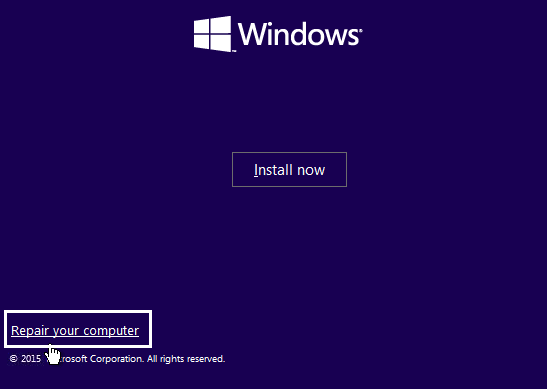
- Now choose Troubleshoot and then Advanced Options.

- Choose Startup Settings.

- Restart your PC and press the number 7 . (If 7 isn’t working then relaunch the process and try different numbers)

If you don’t have any installation media and the other method of getting to Advanced repair options doesn’t work, you need to create a Bootable USB and use it.
Method 2: Try System Restore
Put in the Windows installation media or Recovery Drive/System Repair Disc and select your l anguage preferences , and click Next
Click Repair your computer at the bottom.
- Now choose Troubleshoot and then the Advanced Options.
- Finally, click on “ System Restore ” and follow on-screen instructions to complete the restore.

- Restart your PC, and this step may have Fix The Operating System Version Is Incompatible with Startup Repair Error . Also read Top 10 Worst Operating Systems .. Also read Top 10 Worst Operating Systems ..
Method 3: Disable Secure Boot
- Restart your PC and tap F2 or DEL depending upon your PC to open Boot Setup.
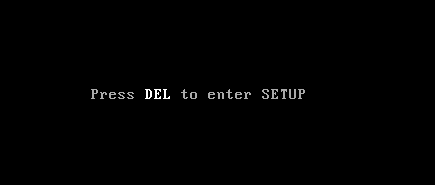
- Find the Secure Boot setting, and if possible, set it to Enabled. This option is usually in either the Security tab, the Boot tab, or the Authentication tab.
![Disable secure boot and try installing windows updates | The Operating System Version Is Incompatible with Startup Repair [FIXED] - 11](https://techcult.com/wp-content/uploads/2016/10/Disable-secure-boot-and-try-installing-windows-updates.png)
#WARNING: After disabling Secure Boot it may be difficult to re-activate Secure Boot without restoring your PC to the factory state.
- Restart your PC and see if you’re able to fix the issue.
Recommended:
- Fix Microsoft Print to PDF Not Working
- Hide Email Address on Windows 10 Login Screen
- Fix Windows 10 Taskbar Won’t Auto Hide
- How to Read Memory Dump Files in Windows 10
That’s it you have successfully Fix The Operating System Version Is Incompatible with Startup Repair Error but if you still have any questions regarding this post then feel free to ask them in the comment’s section.
Fix Microsoft Print to PDF Not Working: One of the best features about Windows 10 is it’s print to PDF function where users can print their web pages, files, jpg or word file as a PDF file using an inbuilt PDF Printer by Microsoft called Microsoft Print to PDF. However, reports are coming in that the Print to PDF is not working on their System. When a user clicks on Print to PDF the web browser simply becomes unresponsive and there is no downloading progress or save to dialogue box.
![[SOLVED] Microsoft Print to PDF Not Working - 12](https://techcult.com/wp-content/uploads/2018/03/SOLVED-Microsoft-Print-to-PDF-Not-Working.png)
Users don’t see any output when they click on Print to PDF and the browser saves the PDF file but there is no mention of where the file was saved and the save to dialogue box doesn’t appear at all. So without wasting any time let’s see how to actually Fix Microsoft Print to PDF Not Working with the help of below-listed troubleshooting guide.
- [SOLVED] Microsoft Print to PDF Not Working
- Method 1: Check the User Folder
- Method 2: Disable then Re-Enable the Microsoft Print to PDF feature
- Method 3: Set Microsoft Print to PDF as the default printer
- Method 4: Re-install Microsoft Print to PDF Drivers
[SOLVED] Microsoft Print to PDF Not Working
Make sure to create a restore point , just in case something goes wrong.
Method 1: Check the User Folder
Before doing anything, first go to the following directory:
C:\users%username%
Press Windows Key + R then type C:\Users%username% and hit Enter. Now look for the PDF file that went missing, if you still couldn’t find the file then go to the following folder: C:\users%username%\Documents and again search for the specific file.
Method 2: Disable then Re-Enable the Microsoft Print to PDF feature
1.Press Windows Key + R then type appwiz.cpl and hit Enter to open Programs and Features.

2.Now from the left-hand menu click on Turn Windows features on or off.

3.Scroll down then uncheck the box next to Microsoft Print to PDF and click OK.

4.Reboot your PC to save changes.
5.Next, again follow the steps from 1 to 3 but this time checkmark the box next to Microsoft Print to PDF.

6.Click Ok to save changes and restart your PC then see if you’re able to Fix Microsoft Print to PDF Not Working Issue.
Method 3: Set Microsoft Print to PDF as the default printer
1.Press Windows Key + R then type “ control printers ” (without quotes) and hit Enter to open Devices and Printers.

2.Now right-click on Microsoft Print to PDF and then select Set as Default Printer.

3.Reboot your PC to save changes and see if you’re able to Fix Microsoft Print to PDF Not Working Issue.
Method 4: Re-install Microsoft Print to PDF Drivers
1.Press Windows Key + R then type “ control printers ” (without quotes) and hit Enter to open Devices and Printers.
2.Now right-click on Microsoft Print to PDF and then select Remove device.

3.Once you have removed Microsoft Print to PDF then click on Add a printer from the menu.

4.Click “ The printer that I want isn’t listed” at the bottom of the Add a device screen.

5.Checkmark “ Add a local printer or network printer with manual setting s” and click Next.

6.Select PORTPROMPT: (Local Port) from “Use an existing port” drop-down and click Next.

7.Next, from the Manufacturer column select Microsoft than from the Printers column select Microsoft Print to PDF and then click Next.

8.Select Replace the current driver and then click Next.

9.Under Printer name type Microsoft Print to PDF and then click Next.

10.Click Finish to complete the process and reboot your PC.
Recommended:
- Fix Windows can’t set up a HomeGroup on this computer
- Hide Email Address on Windows 10 Login Screen
- Fix Windows 10 Taskbar Won’t Auto Hide
- How to Read Memory Dump Files in Windows 10
That’s it you have successfully Fix Microsoft Print to PDF Not Working but if you still have any queries regarding this post then feel free to ask them in the comment’s section.
