You have probably heard of a VPN before, and you have likely used it also. A VPN stands for Virtual Private Network, which basically means it gives you privacy online. Originally, only big businesses and government organizations used VPN services, but nowadays, many internet users use VPN services to secure their data. Nowadays, everyone uses a VPN since it ensures that your location stays private; the data is encrypted while you can surf the internet anonymously.

Today in the world of growing technology, there is no work for which we are not dependent on the Internet. Internet is not only a part of our life these days, in fact, but it is also our life. Without the internet, we feel like nothing exists. But as technology and use of the internet are growing tremendously day by day, it also raises Security’s question. As we do online payments using phones and laptops, we send our personal details to others using social media. Hence, all our phones and laptops contain very sensitive and private information that obviously needs to be protected and secured.
We use the Internet a lot but do not know how does it work. So, let’s look at first how the Internet actually transfers and receive data.
- How Internet Works
- What is a VPN ??
- Types of VPN
- How Does VPN work?
- How a VPN gets access to the blocked websites
- Free VPN vs Paid VPN
- Disadvantages of Using a VPN
How Internet Works
These days you can access the Internet in several ways. Like in phones, you can use mobile data or any WiFi connection. In laptops or PCs you can use WiFi or lane cables. You may have some modem/router to which your desktop is connected via Ethernet and your laptops and phones through WiFi. Before connecting to the mobile data or modem or WiFi, you are at your local network, but as soon as you connect to any of them, you are at a vast network called the Internet.
Whenever you do something on the Internet like searching for a web page, it first reaches from your local network to phone company or company’s WiFi you are using. From there it heads towards vast network ‘Internet’ and eventually arrives at the webserver. At web server it looks for the web page you have requested and send back the requested web page which flies over the internet and arrives at the phone company and eventually makes it way through modem or mobile data or WiFi (whatever you are using to access the internet) and finally reaches at your computer or phones.
Before sending your request to internet, an address called IP address is attached to it so that when requested web page arrives it should know from where the request was sent and where it has to reach. Now the request we have made travel through the local network, phone company or modem, internet and then finally at the webserver. Hence, our IP address is visible at all these places, and through IP address, anyone can access our location. The web page will also log your IP address due to heavy traffic and temporarily for some time it will be logged there, and here it raises the question of privacy. It can hinder your private data and can look at what you are doing on your systems.
The biggest privacy problem arises with open WiFi. Suppose you are at some restaurant which offers free and open WiFi. Being a desperate internet user, you will immediately connect to it and start using it as much as possible without knowing that most of these free WiFi’s are completely open without any encryption. It is very easy for free WiFi provider to look into your private data and what you are doing. The worst thing is it is also easy for other people connected with the same WiFi hotspot to capture all packets (data or information) send over this network. It makes it very easy for them to pull out all the information regarding your passwords and websites you are accessing. So it is always advised you should not access your sensitive information like banking details, online payments etc. using public open WiFi.
While accessing some sites, one problem arises about that content or site is blocked, and you cannot access it. It can be for an educational reason or political reason or any other reason. For example, Universities provide each student login credentials so that they can access college WiFi. But some sites ( like Lime torrent etc. ), which universities find are not suitable for students, blocked them so that students cannot access them using college WiFi.

So, to solve all these problems, VPN comes into the role.
What is a VPN ??
VPN stands for Virtual Private Network. It creates a safe, secure and encrypted connection to other networks over the less-secure network such as the public Internet. It provides a shield to your local network so that whatever you are doing like browsing websites, accessing sensitive information, etc., will not be visible to other networks. It can also be used to access restricted sites and more.

Initially, VPNs were created to connect business networks and provide business employees inexpensive, safe access to corporate data. Nowadays, VPNs have become very popular. They are used by a large number of people like students, employees, freelancers, and business travellers (who travel in different countries) to access the restricted sites. VPN serves many purposes:
- Protect from leaking of private and sensitive data by providing security
- Helps in accessing blocked and restricted sites
- Protect from being logged by a web server during heavy traffic
- Helps in hiding the true location
Types of VPN
There are several types of VPN:
Remote Access: A Remote Access VPN allows an individual user to connect to a private business network by providing location as a remote location using a computer or laptop connected to the Internet.
Site-to-site: Site to Site VPN allows multiple offices at a fixed location to connect over a public network such as the Internet.
Mobile: Mobile VPN is a network in which mobile devices access a Virtual Private Network (VPN) or intranet while moving from one location to another.
Hardware: Hardware VPN is a single, stand-alone device. Hardware VPNs provide enhanced security in the same way as hardware routers provide for home and small-business computers.
VPNs are not used only from Android. You can use VPN from windows, Linux, Unix and so on.
How Does VPN work?
It would help if you had a VPN provider in your device to use VPN, whether it is a mobile phone or laptop or desktop. Depending on the service provider, you can either set up the VPN manually or use it through any programme/app. Regarding VPN app, there are several choices out there. You can use any VPN app. Once the VPN is set up in your device, you are all set to use it.
Now before using the Internet, connect your VPN. Your device will now make an encrypted connection to the VPN server in the country you will choose. Now your computer or mobile phone will act on the same local network as a VPN.
All the data is encrypted before it reaches to phone company or WiFi provider. Now whatever you do use the internet, all your network traffic before reaching the phone company or modem or WiFi provider reaches a secure VPN network as encrypted data. Now it will arrive at the phone company or modem or WiFi and then finally at the webserver. When looking for an IP address, the webserver gets the IP address of VPN instead of the IP address from where the request was made. In this way, VPN helps in hiding your location . When data comes back, it first reached VPN through phone company or WiFi or modem and then reached to us through a secured and encrypted connection of VPN.
As destination site sees VPN server as the origin and not yours and if someone wants to see what data you are sending, they can only see the encrypted data and not the raw data so that VPN protects from leaking of private data .

The destination site sees the IP address of VPN server only and not yours. So if you want to access some blocked site, you can choose VPN server IP address as it is from somewhere else so that when web server looks for IP address of from where the request is originated, it will not find the IP address block and can easily send the requested data. For example: If you are in a different country and want to access some Indian site like Netflix, which is blocked in other countries. So you can choose your VPN server country like India so that when the Netflix server looks for IP address from where the request originated, it will find the IP address of India and easily send the requested data. In this way, VPN helps in accessing blocked and restricted sites .
There is one more benefit of using a VPN. Some online sites prices vary according to your location. Example: if you are in India, the price of something is different, and if you are in the USA, the same thing is different. So connecting VPN to a country where prices are low helps buy the product at low prices and saves money.
So, it is always advisable to connect to VPN before connecting to public WiFi, or if you want to access blocked sites or do online shopping or any booking.
How a VPN gets access to the blocked websites
Websites are blocked by our Internet Service Providers (ISP’s) or by the network administrators. When a user wants to access a website that the ISP blocks, the ISP does not allow the request to move forward to the server hosting that website. So how a VPN gets through it.
A VPN connects to a Virtual Private Server (VPS), so when the user is requesting a website, the ISP or the router to which we are connected to think that we are requesting to be connected to the VPS which is not blocked. As this is a spoof, the ISP’s allow us access to these VPS and connect to them. These VPS send a request to the server that are hosting these websites, and then these VPS returns the user’s data. In this way, VPN’s get access to any website.
Free VPN vs Paid VPN
If you are going to use a free VPN, you can expect that your privacy will be maintained up to some level, but some compromises will be made. They may be selling your information to a third party or showing irritating and unnecessary ads repeatedly; also, they are logging your activity. Moreover, some unreliable VPN apps are using the information to hack into user privacy.
It is advised to go for paid versions of VPN’s as they are not very costly plus they will provide you with a lot more privacy than the free version would. Also, when using a free VPN, you will get access to a public or used server, and if you go for a VPN service that is paid, you will get a server for yourself, which will lead to a good speed. Some of the best paid VPN’s are Express VPN, Nord VPN , Hotspot Shield and many more. To check out some amazing paid VPN’s and about their monthly and yearly subscription rate, check out this article.
Disadvantages of Using a VPN
- The speed is a big issue when using a VPN.
- The involvement of VPS increases the process length of fetching a webpage and thus decreases the speed.
- VPN connections can drop unexpectedly, and you might keep using the internet without knowing about this.
- The use of VPN is illegal in some countries as they provide anonymity, privacy, and encryption.
- Some online services can detect the presence of a VPN, and they block the VPN users.
VPN’s are great for providing privacy and encryption of your data from anyone interested in viewing your data illegally. One can use them to unblock sites and maintain privacy. However, VPN’s are not needed every time. If you are connected to a public WiFi, it is recommended to use a VPN to protect your information from getting hacked.
Recommended:
- Clear Clipboard using Command Prompt or Shortcut
- Get Your Printer Back Online in Windows 10
- Increase Microphone Volume in Windows 10
- Run Android Apps on Windows PC
I hope this article was helpful, and you get an answer to this question: What is a VPN and how it works? If you still have any questions regarding this guide, please feel free to ask them in the comment’s section.
How to Get Your Printer Back Online: There may be situations where you need to print any file for an urgent meeting and you need to submit those files in 30 minutes. So what you usually do is open the file and go to print option to print the document. But suddenly you noticed that in the bottom right corner of your system the status of your printer is showing as offline. This is a usual problem for users because even when your Printer is clearly ON and ready to print, the status is showing offline.
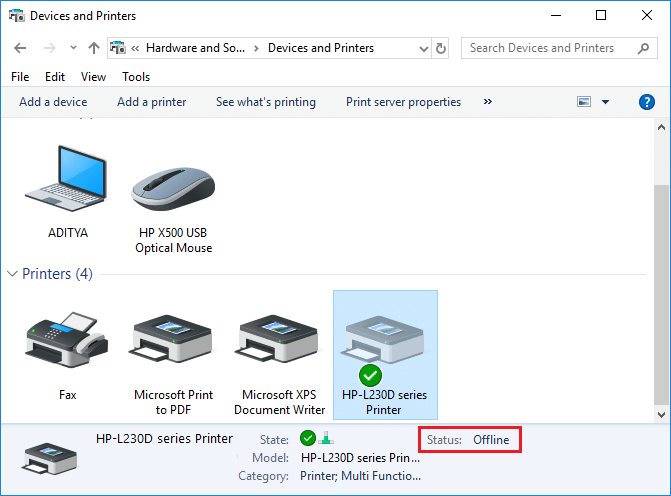
This is caused by the communication error viz The Active Directory Domain Services is Currently Unavailable error of the printer with your system. There is no particular cause for this error but the issue could be caused because of outdated or incompatible drivers, conflict of printer spooler services, a problem with physical or hardware connection of the printer to PC, etc. So without wasting any time let’s see How to Get Your Printer Back Online in Windows 10 with the help of the below-listed tutorial.
- How to Get Your Printer Back Online in Windows 10
- Method 1: Check Your Printer Connection
- Method 2: Update Printer Driver
- Method 3: Change the Printer Status
- Method 4: Restart Print Spooler Service
- Method 5: Use a Second Printer
- Method 6: Reinstall your Printer Drivers
How to Get Your Printer Back Online in Windows 10
Make sure to create a restore point just in case something goes wrong.
Method 1: Check Your Printer Connection
When there is an error showing your status of the printer as offline, the system wants to tell users that there is something wrong with the communication established between the printer and the system through the USB cable or network connection. To solve this issue the steps are:
- To restart your printer, off the power supply of the printer & then switch it ON again.
- Now again check the connection of your printer.
- If the connection of your system with the printer is made using a USB cable, make sure your cable is working properly and the connections to the ports are fitted tight. You could also switch the USB port to see if this resolves the problem.
- If the connection of your system with the printer is made through wired networks, check whether the connection to your cable is properly done or not. Also, you can check whether the signal to your printer is flashing or not.
- If the connection of your system with the printer is made through a wireless network, make sure your printer is connected to your computer network & the wireless icon will lit-up to show that you are connected.
If nothing works then you should try to run Printer Troubleshooter:
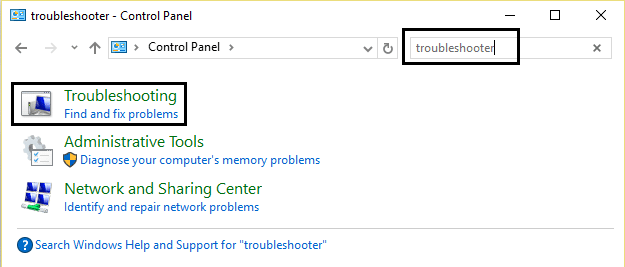
1.Type “troubleshooting” in Control Panel then click on Troubleshooting from the search result.
2.Next, from the left window pane select View all.
3.Then from the Troubleshoot computer problems list select Printer.

4.Follow on-screen instruction and let the Printer Troubleshooter run.
5.Restart your PC and you may be able to Get Your Printer Back Online in Windows 10, if not then continue with the next method.
Method 2: Update Printer Driver
1.Press Windows Key + R then type “ services.msc ” and hit enter.

2.Find Print Spooler service then right click on it and select Stop.

3.Again press Windows Key + R then type printui.exe /s /t2 and hit enter.
4.In the Printer Server Properties window search for the printer which is causing this issue.
5.Next, remove the printer and when asked for confirmation to remove the driver as well, select yes.

6.Now again go to services.msc and right-click on Print Spooler and select Start.

7.Next, navigate to your printers manufacturer website, download and install the latest printer drivers from the website.
For example , in case you have an HP printer then you need to visit HP Software and Drivers Downloads page . Where you can easily download the latest drivers for your HP printer.
8.If you’re still not able to fix Printer Offline Status then you can use the printer software that came with your printer. Usually, these utilities can detect the printer on the network and fix any issues that are causing the printer to appear offline.
For example, you can use HP Print and Scan Doctor to fix any issues regarding HP Printer.
Method 3: Change the Printer Status
1.Turn off your Printer and then again turn it back ON.
2.Now press the key combination Windows Key + I to open Settings.
3.Now click on “ Devices ” then from the left-hand side menu select “ Bluetooth & other devices ” option.

4.Under Related settings click on “ Devices and printers “.

5.Then, you have to right-click on the printer icon with a green check-mark and choose “ See what’s printing ”.

Note: If there is no default printer set, then right-click on your printer and select “ Set as default printer “.

6.You will see the printer queue, see if there are any unfinished tasks and make sure to remove them from the list.

7.Now from the printer queue window, select your Printer and uncheck the “Use Printer Offline” & “ Pause Printer ” option.

Method 4: Restart Print Spooler Service
1.Use the shortcut key combination Windows Key + R to open the Run application.
2.Now type in there “ services.msc ” and hit Enter or click OK.
3.Scroll down to look for “ Print Spooler ” from the service utility window an check whether the status is running or not.
4.If you cannot see the status, you can right-click on Print Spooler and choose “ Start ”.
5.Or else, double-click on Print Spooler service & make sure the Startup type is set to Automatic and the service is running, then click on Stop and then again click on start in order to restart the service.

6.Click Apply followed by OK.
7.After that, again try to add the printer and see if you’re able to Get Your Printer Back Online in Windows 10.
Method 5: Use a Second Printer
This approach of solving the issue will work only when the printer is connected via a network to the PC (instead of the USB cable). Otherwise, you can manually set your IP address for your printer.
1.Press Windows Key + I to open Settings then click on Devices.
2.From the left-hand menu click on “ Bluetooth & other devices “.
3.Now from the right window pane click on “ Devices and printers “.
4.Right-click on your printer and select Printer properties from the context menu.

5.Switch to Ports tab then click on the “ Add Port… ” button.

6.Choose “ Standard TCP/IP Port ” under Available port types and then click on the New Port button.

7.On the Add Standard TCP/IP Printer Port Wizard click on Next .

8.Now type in the Printers IP Address and Port name then click Next.

Note: You could easily find the IP address of your printer on the device itself. Or you could find these details on the manual that came with the printer.
9.Once you successfully added the Standard TCP/IP Printer, click Finish.

See if you’re able to Get Your Printer Back Online in Windows 10 , if not then you need to reinstall your printer drivers.
Method 6: Reinstall your Printer Drivers
1.Press Windows Key + R then type control printers and hit Enter to open Devices and Printers.

- Right-click on your printer and select “ Remove device ” from the context menu.

3.When the confirm dialog box appears , click Yes.

4.After the device is successfully removed, download the latest drivers from your printer manufacturer website .
5.Then reboot your PC and once the system restarts, press Windows Key + R then type control printers and hit Enter.
Note: Make sure your printer is connected to the PC via USB, ethernet or wirelessly.
6.Click on the “ Add a printer ” button under Device and Printers window.

7.Windows will automatically detect the printer, select your printer and click Next.

- Set your printer as default and click Finish.

Recommended:
- How to Change Default System Font in Windows 10
- What is an MKV file and how to open it?
- Fix Destination Path Too Long Error
- How to Find My Router’s IP Address?
I hope this article was helpful and now you can easily Get Your Printer Back Online in Windows 10 , but if you still have any questions regarding this guide then feel free to ask them in the comment’s section.
