
- What is Packet Loss in Valorant?
- What is the Cause of Packet Loss in Valorant?
- What is Normal Packet Loss in Valorant?
- How to Fix Packet Loss in Valorant
- Method 1: Restart Game
- Method 2: Restart PC and Router
- Method 3: Wait for Valorant Server Uptime
- Method 4: Use Wired Connection
- Method 5: Troubleshoot Internet Connection
- Method 6: Close Background Apps
- Method 7: Update Network Driver
- Method 8: Update Windows
- Method 9: Change or Flush DNS Cache
- Method 10: Use VPN
What is Packet Loss in Valorant?
The term packet loss means the loss of one or more packets of data while reaching the destination. This will result in a connection lag as the data packet may not reach you or the server at all. It can happen while playing online games or while streaming multimedia content on your browser. These losses sometimes can occur in massive amounts which might result in a connection shutdown. The outgoing packet loss Valorant can show high interlude, unresponsive menu and other options, sudden crashes, and rubberbanding.
What is the Cause of Packet Loss in Valorant?
There can be several reasons that can cause this issue. We have listed a few of them below:
- Packet losses may occur when the server of your ISP or the Valorant is under maintenance or is down.
- Another reason can be your Wi-Fi or Subpar Ethernet cables which can cause packet loss.
- Network Congestion can be a prominent cause as sometimes networks are unable to accommodate users or requests.
- Outdated Windows, graphic drivers, and background apps can also result in packet losses.
Further in the article you are going to read about what is normal packet loss in Valorant.
What is Normal Packet Loss in Valorant?
We have got answers if you are wondering how much packet loss is normal Valorant. Some packet loss is expected in Valorant but this loss should be 1% . This is said to be acceptable as it would not make much of a difference in the game. Packet loss of more than 2% can cause visible issues to the players and the game. These include missed shots while playing and jitter conversations.
How to Fix Packet Loss in Valorant
We have listed down the methods that might help you fix the outgoing packet loss Valorant.
Method 1: Restart Game
Restarting the game has turned out to be helpful most of the time. Though it requires you to ruin the game of your teammates, it seems to be better than losing and giving away points to the other team. In any way, this method will help you get rid of the packet losses. To know more about this, you can visit our blog How to restart Valorant Riot client in Windows 10 .

Method 2: Restart PC and Router
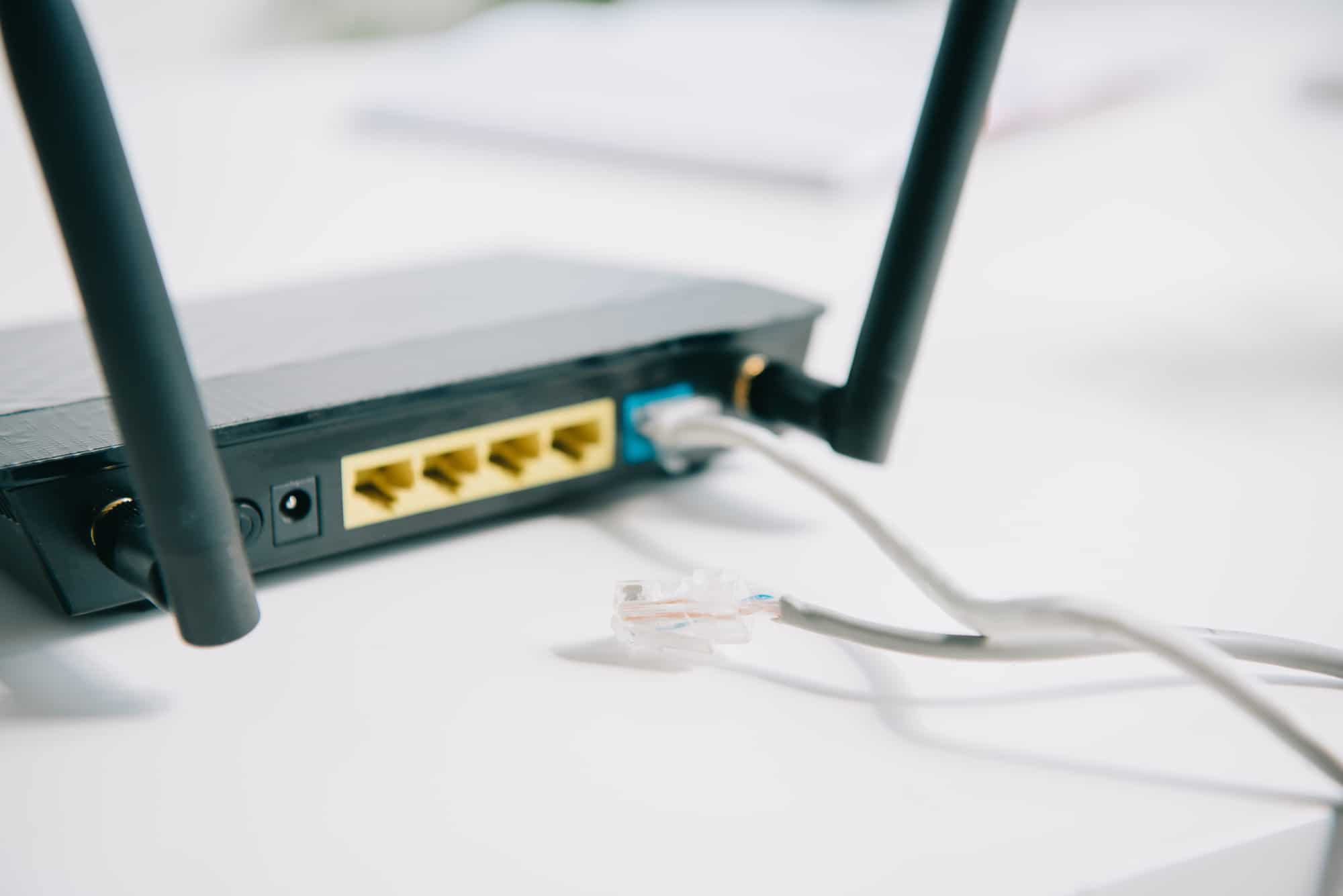
It is another common method to fix packet loss in Valorant. It is a simple method that works well and brings a good difference in fixing the outgoing packet loss. You just need to restart your PC and router after keeping it unplugged for a minimum of 30 seconds. You can try this simple method to see if the packet loss issue is fixed.
Method 3: Wait for Valorant Server Uptime
Before moving on to the other fixes, you can make sure to check the status of the Valorant server . It can be down or under maintenance. You can also check Valorant’s Twitter page to know if the server is down. If you continue to face this issue, you can further proceed with the additional fixes that are given below.

Method 4: Use Wired Connection
Using a wired connection is said to be much more reliable in the case of packet loss than using a Wi-Fi connection. The LAN cable gives you a faster internet speed and better connectivity. Therefore, you can request your ISP to provide you with a LAN cable to fix the packet loss issue while playing Valorant.

Method 5: Troubleshoot Internet Connection

Method 6: Close Background Apps
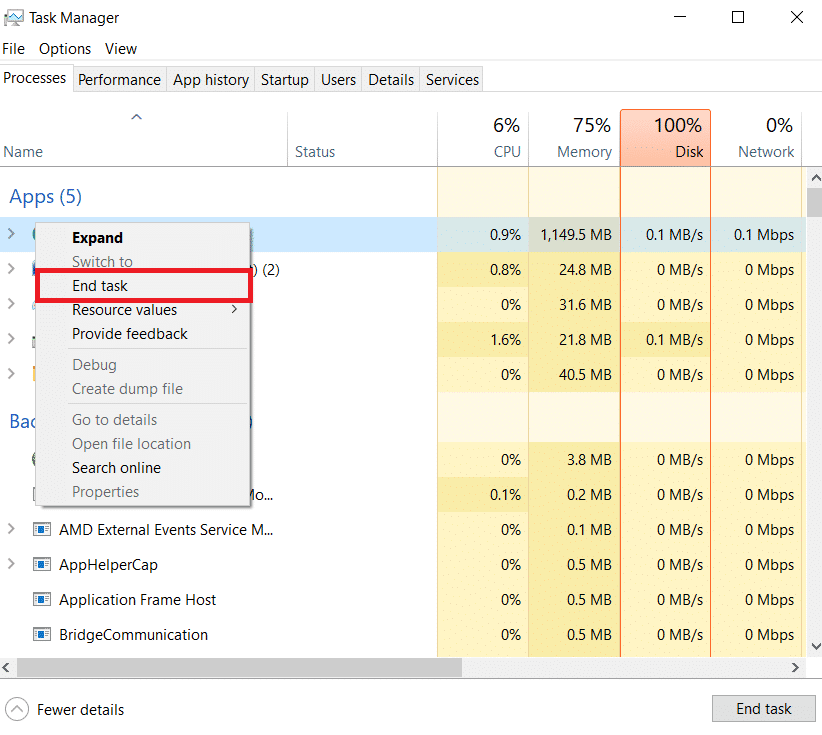
Another easy fix to resolve the packet loss issue is to close the apps that are running in the background and occupying your bandwidth. Some common apps that can cause packet loss by running in the background are Google Chrome, antivirus software, or any video streaming site. Read our guide on How to end task in Windows 10 .
Method 7: Update Network Driver
Keeping the network driver up to date is very essential as it establishes the internet, network, and your PC. Once you update the network driver of your PC, the packet loss issue while playing will automatically get resolved. To learn the step-by-step guide to updating your network driver, visit our blog on How to update network adapter drivers on Windows 10 .

Method 8: Update Windows

Method 9: Change or Flush DNS Cache
Another fix to the packet losses is changing or flushing the DNS cache. Changing DNS can help you improve your gaming experience. This can be done easily in three ways. To know more about it you can visit our blog 3 Ways to change DNS settings on Windows 10 .

Method 10: Use VPN
VPN also known as the Virtual Private Network also turns out to be an essential solution to packet loss Valorant how to fix the issue. By using a VPN, you can incur minimal outgoing packet losses. It is so because it enables you to move the server to somewhere near significantly increasing the access to the servers. You can read our article on the 21 best free VPNs for Windows 10 to find yourself the best VPN.

Recommended:
- Fix Could Not Connect to Steam Network Error
- 8 Ways to Fix Apex Legends Blurry Issue
- How to Fix Valorant FPS Drops
- Fix Valorant Graphics Driver Crashed in Windows 10
