Microsoft Windows updates are essential since they fix bugs and security loopholes in Windows. But sometimes these updates cause the Windows to become unstable and create more problems then the update was supposed to fix. And one such issue that is created by Windows update is the brief usoclient.exe CMD popup at the startup. Now, most people think that this usoclient.exe pop-up appears because their system is infected with a virus or malware. But don’t worry as Usoclient.exe is not a virus and it simply appears because of Task Scheduler .

Now if the usoclient.exe appears only sometimes and doesn’t stay long you can definitely ignore the issue altogether. But if the pop-up stays long and does not go away then it’s an issue and you need to fix the underlying cause to get rid of the usoclient.exe pop-up. So without wasting any time let’s see What is usoclient.exe, and how do you disable usoclient.exe at the startup with the help of the below-listed tutorial.
- What is Usoclient.exe?
- Is Usoclient.exe is a virus?
- Is It Ok to Delete the Usoclient.exe?
- How to Disable Usoclient.exe?
- 3 Ways to Disable UsoClient.exe in Windows 10
- Method 1: Disable Usoclient.exe using Task Scheduler
- Method 2: Disable Usoclient.exe using Group Policy Editor
- Method 3: Disable Usoclient.exe using Registry Editor
What is Usoclient.exe?
Usoclient stands for Update Session Orchestra. Usoclient is the replacement of Windows Update Agent in Windows 10. It is a component of Windows 10 Update and naturally, its main task is to check for new updates automatically in Windows 10. Since usoclient.exe has replaced Windows Update Agent, so it has to handles all the tasks of Windows Update Agent such as to install, scan, pause, or resume Windows update.
Is Usoclient.exe is a virus?
As discussed above usoclient.exe is a very legitimate executable file that is associated with Windows Updates. But in some cases, a virus or malware infection is also capable of creating pop-ups to hamper the user experience or to create unnecessary issues. So it is important to check if the usoclient.exe popup is really caused by the Windows Update USOclient or due to a virus or malware infection.
To check the pop up that is appearing is Usoclient.exe or not, follow the below steps:
1.Open Task Manager by searching for it using the search bar or press Shift + Ctrl + Esc keys together.

2.As soon as you hit Enter button the Task Manager window will open up.

3.Under the processes tab, look for the Usoclient.exe process by scrolling through the list of processes.
4.Once you find the usoclient.exe, right-click on it and select “ Open file location “.

5.If the location of the file that opens up is C:/Windows/System32 then it means you are safe and there is no harm to your system.

6.But if the location of the file opens anywhere else then it is definite that your system is infected with viruses or malware. In this case, you need to run powerful antivirus software that will scan & remove the virus infection from your system. If you don’t have one then you can check out our in-depth article to run Malwarebytes to remove viruses or malware from your system.
But what if the Usoclient.exe popup is actually caused by Windows Update, then your natural instinct will be to remove the UsoClient.exe from your PC. So now we will see if it is a good idea to delete the UsoClient.exe from your Windows folder or not.
Is It Ok to Delete the Usoclient.exe?
If the Usoclient.exe popup is appearing on your screen for a long time and is not easily going away, then obviously you need to take some action in order to resolve the issue. But deleting Usoclient.exe is not advisable since it may trigger some unwanted behavior from Windows. Since Usoclient.exe is a system file that is actively used by Windows 10 on a day-to-day basis, so even if you delete the file from your system the OS will recreate the file at the next boot. In short, there is no point in deleting the Usoclient.exe file as this will not fix the pop-up issue.
So you need to find some solution which will fix the underlying cause of the USoclient.exe popup and will resolve this problem altogether. Now the best way to do this is to simply disable the Usoclient.exe on your system.
How to Disable Usoclient.exe?
There are several methods using which you can easily disable the Usoclient.exe. But before you go ahead and disable the Usoclient.exe, it is important to understand that by disabling it you are preventing your computer from staying up-to-date with the latest Windows updates that will make your system more vulnerable as you won’t be able to install security updates & patches released by Microsoft. Now if you are OK with this then you can proceed with the below methods to disable the Usoclient.exe
3 Ways to Disable UsoClient.exe in Windows 10
Before proceeding, make sure to create a restore point just in case something goes wrong.
Method 1: Disable Usoclient.exe using Task Scheduler
You can disable the Usoclient.exe pop-up to appearing on your screen using Task Scheduler, to do so follow the below steps:
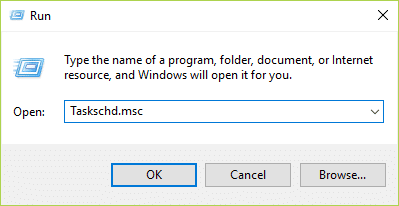
1.Press Windows Key + R then type taskschd.msc and hit Enter to open Task Scheduler.
2.Navigate to the below path in the Task Scheduler window:
Task Scheduler Library > Microsoft > Windows >UpdateOrchestrator
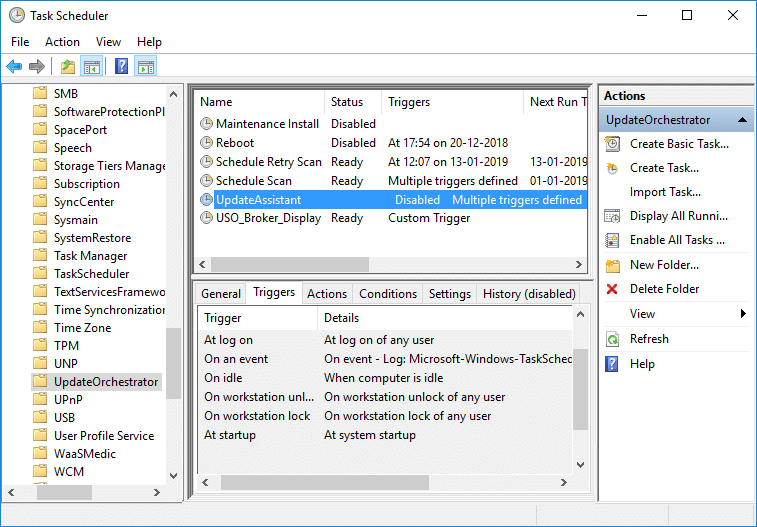
3.Once you reached the selected path, click on UpdateOrchestrator.
4.Now from the middle window pane, right-click on the Schedule Scan option and select Disable .
Note: Or you can click on Schedule Scan option to select it then from the right-window pane click on Disable.

5.Close Task Scheduler window and reboot your PC to save changes.
After the computer restarts, you will notice that the Usoclient.exe pop up will no longer appear on your screen.
Method 2: Disable Usoclient.exe using Group Policy Editor
You can disable the Usoclient.exe pop-up to appearing on your screen using Group Policy Editor. This method only works for Windows 10 Pro, Education, & Enterprise edition version, if you’re on Windows 10 Home then you need to either install Gpedit.msc on your system or you can directly go to the next method.
Let’s see how to disable automatic restart for Automatic Updates by opening your Group Policy Editor:
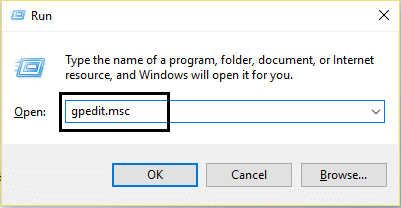
1.Press Windows Key + R then type gpedit.msc and hit Enter.
2.Now navigate to the following location under Group Policy Editor:
Computer Configuration > Administrative Templates > Windows Components > Windows Update
3.Select Windows update than in the right window pane, double-click on “ No auto-restart with logged on users for scheduled automatic updates installations “.

4.Next, Enable the No auto-restart with logged on users for scheduled automatic updates installations setting.

5.Click Apply followed by OK.
6.Close Group Policy Editor and restart your PC.
Method 3: Disable Usoclient.exe using Registry Editor
You can also use Registry Editor to disable Usoclient.exe pop at startup. This method involves creating a Dword 32-bit value called NoAutoRebootWithLoggedOnUsers.
To use Registry Editor to disable Usiclient.exe follow the below steps:
1.Press Windows Key + R then type regedit and hit Enter.

2.Now navigate to the following folder under Registry Editor:
HKEY_LOCAL_MACHINE\SOFTWARE\Policies\Microsoft\Windows\WindowsUpdate\AU

3.Right-click on the AU folder and select New > DWORD (32-bit) Value.

4.Name this newly created DWORD as NoAutoRebootWithLoggedOnUsers.

- Double-click on NoAutoRebootWithLoggedOnUsers and set it’s value to 1 by entering 1 in the Value data field.

6.Click OK and close the Registry Editor.
7.Reboot your PC to save changes and after the computer restarts, you will find out that the Usoclient.exe pop up will no longer be visible.
So the next time you see the USOClient.exe pop-up at the startup you don’t need to be alarmed unless the pop-up stays there and conflicts with Windows startup. If the popup causes issue then you can use any one of the above methods to disable the Usoclient.exe and let it not interfere with your system startup.
Recommended:
- Fix Windows Media Player Server Execution Failed Error
- How to Connect a Bluetooth Device on Windows 10
- Fix Can’t Print PDF Files from Adobe Reader
- How to Format Hard Drive on Windows 10
I hope the above steps were able to help you Disable Usoclient.exe in Windows 10 but if you still have any queries regarding this guide then feel free to ask them in the comment’s section.
If you’re facing issues in printing your PDF files on Adobe Reader then don’t worry as the problem can be easily solved by updating printer’s driver, setting your printer as the default printer, etc. But before continuing you should try to print another PDF file and if you’re able to print successfully then the PDF file you were earlier trying to print was corrupted. But if you still can’t print pdf files from adobe reader then continue with the advanced troubleshooting guide.
- Fix Can’t Print PDF Files from Adobe Reader
- Method 1: Miscellaneous Fixes
- Method 2: Update Printers driver
- Method 3: Set your Printer as the Default Printer
- Method 4: Try to print PDF as an image
- Method 5: Save another copy of the PDF file
- Method 6: Reinstall your Printer Drivers
- Method 7: Re-install Acrobat Reader
Fix Can’t Print PDF Files from Adobe Reader
Make sure to create a restore point just in case something goes wrong.
Method 1: Miscellaneous Fixes
1.Try to print the webpage you’re currently on, press Ctrl + P and print the document and see if you’re able to.

2.Instead of PDF file try to print a text or images file , if you’re are able to print then the problem is with Adobe Reader and updating it might fix the issue.

3.Power Cycle the Printer:
- Restart your PC and power off the Printer then disconnect it from the PC.
- Don’t start the Printer, just press and hold the power button of the printer for 10 seconds.
- Now connect the printer to the PC then power ON the PC and once the system starts, you can power ON your printer.
Method 2: Update Printers driver
To update the printer driver follow these steps.
1.Press Windows key + X then select Device Manager.

2.Expand Print queues then select the printer for which you want to update the drivers.
3.Right-click on the selected Printer and select Update driver.

4.Select Search automatically for updated driver software.
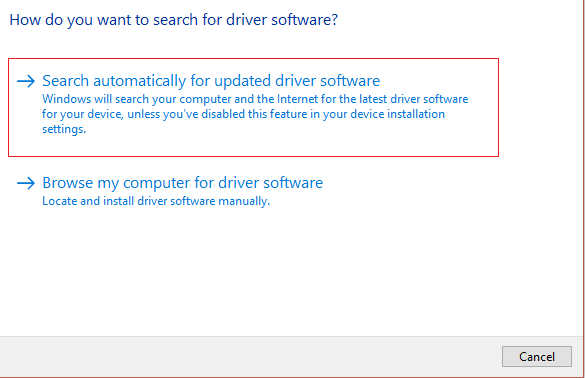
5.Windows will automatically install the latest drivers available for your printer.

Manually Install the Latest Printer Drivers
1.Press Windows Key + R then type “ services.msc ” and hit enter.

2.Find Print Spooler service then right-click on it and select Stop.

3.Again press Windows Key + R then type printui.exe /s /t2 and hit enter.
4.In the Printer Server Properties window search for the printer that is causing this issue, select it and then click on the Remove button.
5.Next, remove the printer and when asked for confirmation to remove the driver as well, select yes.

6.Now again go to services.msc and right-click on Print Spooler and select Start.

7.Next, navigate to your printer manufacturer’s website like HP , Dell , Canon , download and install the latest printer drivers from the website.
For example , in case you have an HP printer then you need to visit HP Software and Drivers Downloads page . Where you can easily download the latest drivers for your HP printer.
8.If you’re still not able to fix slow network printing error or can’t Print PDF Files from Adobe Reader then you can use the printer software that came with your printer. Usually, these utilities can detect the printer on the network and fix any issues that are causing the printer to appear offline.
For example, you can use HP Print and Scan Doctor to fix any issues regarding HP Printer.
Method 3: Set your Printer as the Default Printer
1.Press Windows Key + R then type control and hit Enter to open Control Panel.
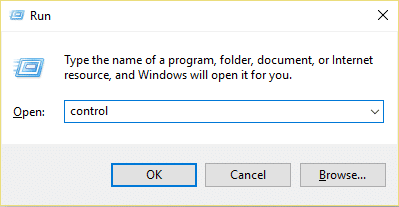
2.From the Control Panel click on Hardware and Sound.

3.Next, click on Device and Printers.

- Right-click on your Printer and select Set as default printer.

5.Restart your PC to save changes.
Method 4: Try to print PDF as an image
1.First, open your PDF file in Acrobat Reader.

2.Now from the Adobe Reader toolbar click on the print icon or press Ctrl + P.
3.From the print window, click on the Advanced button.

4.In the Advanced Print Setup window checkmark “ Print As Image ” and click OK.
<img loading=“lazy” src=“https://techcult.com/wp-content/uploads/2019/10/From-the-print-window-click-on-the-Advanced-button.png" onerror=“this.onerror=null;this.src=‘https://blogger.googleusercontent.com/img/a/AVvXsEhe7F7TRXHtjiKvHb5vS7DmnxvpHiDyoYyYvm1nHB3Qp2_w3BnM6A2eq4v7FYxCC9bfZt3a9vIMtAYEKUiaDQbHMg-ViyGmRIj39MLp0bGFfgfYw1Dc9q_H-T0wiTm3l0Uq42dETrN9eC8aGJ9_IORZsxST1AcLR7np1koOfcc7tnHa4S8Mwz_xD9d0=s16000';" alt=“In the Advanced Print Setup window checkmark “Print As Image” and click OK - 33”>
5.Next, click the Print button and see if you’re able to print the PDF file as an image.

Method 5: Save another copy of the PDF file
1.Open the PDF file in Acrobat Reader then press Shift + Ctrl + S to open Save As dialog box.

Note: From the Acrobat Reader menu click on File and select Save As.
2.Navigate to where you want to save the file, type a new name and click Save.

3.Now try to print this newly created PDF and see if you’re able to Fix Can’t Print PDF Files from Adobe Reader.
Method 6: Reinstall your Printer Drivers
1.Press Windows Key + R then type control printers and hit Enter to open Devices and Printers.

- Right-click on your printer and select “ Remove device ” from the context menu.

3.When the confirm dialog box appears , click Yes.

4.After the device is successfully removed, download the latest drivers from your printer manufacturer website .
5.Then reboot your PC and once the system restarts, press Windows Key + R then type control printers and hit Enter.
Note: Make sure your printer is connected to the PC via USB, ethernet or wirelessly.
6.Click on the “ Add a printer ” button under Device and Printers window.

7.Windows will automatically detect the printer, select your printer and click Next.

- Set your printer as default and click Finish.

This is how you can update the driver and after this, you can try to print the documents once again.
Method 7: Re-install Acrobat Reader
1.Press Windows Key + I to open Settings then click on Apps.

2.From the left hand make sure to select Apps & features.
3.Now from the “ Search this list ” box type Acrobat in it.

4.Click on Adobe Acrobat Reader DC then click on the Uninstall button under it.

5.Now download the latest version Adobe Acrobat Reader from the official website .
6.Install the latest version of Acrobat Reader on your PC and Reboot your PC.
7.Again try to print the PDF file and this time you will be able to print it without any issues.
Recommended:
- Fix Windows Media Player Server Execution Failed Error
- 3 Ways to Delete Files Protected by TrustedInstaller
- How to Connect a Bluetooth Device on Windows 10
- How to Format Hard Drive on Windows 10
I hope the above steps were able to help you Fix Can’t Print PDF Files from Adobe Reader but if you still have any queries regarding this guide then feel free to ask them in the comment’s section.

